Why Can’t My Xbox Connect with a Static IP Address?
Fast answer first. Then use the tabs or video for more detail.
- Watch the video explanation below for a faster overview.
- Game mechanics may change with updates or patches.
- Use this block to get the short answer without scrolling the whole page.
- Read the FAQ section if the article has one.
- Use the table of contents to jump straight to the detailed section you need.
- Watch the video first, then skim the article for specifics.
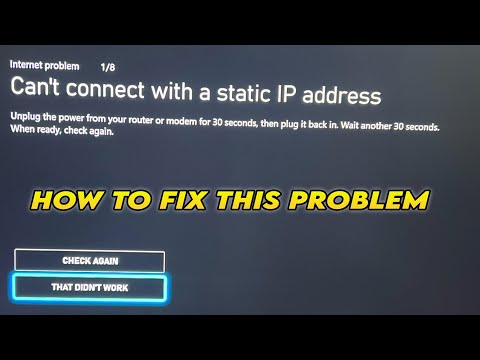
Let’s cut straight to the chase. You’ve meticulously configured a static IP address for your Xbox, anticipating a smoother, more reliable gaming experience. Yet, instead of fragging opponents with unparalleled precision, you’re staring at a frustrating “Can’t connect to Xbox Live” error. What gives?
The issue usually boils down to a few key culprits. The most common reasons your Xbox can’t connect with a static IP address are:
-
Incorrect IP Configuration: This is the prime suspect. A single typo in the IP address, subnet mask, default gateway, or DNS server settings can completely derail the connection.
-
IP Address Conflict: You’ve inadvertently assigned an IP address that’s already in use by another device on your network. Every device needs a unique IP address to communicate effectively.
-
Out-of-Range IP Address: The static IP you’ve chosen falls outside the valid IP address range of your router’s network. Your router assigns IP addresses within a specific range, and a static IP must reside within that range.
-
Router Restrictions: Some routers have features that restrict or block static IP addresses assigned directly on devices. This is less common but worth investigating.
-
Firewall Issues: Although less common, it is still worth investigating the firewall settings for the router. Firewalls can sometimes block your Xbox from communicating with the network or internet.
-
DNS Server Problems: If the DNS server addresses you’ve entered are incorrect or unresponsive, your Xbox won’t be able to translate web addresses into IP addresses, effectively blocking internet access.
Troubleshooting these issues systematically is the key to getting your Xbox back online. We’ll explore each potential cause in more detail below, along with practical steps to diagnose and fix them.
Diagnosing and Resolving Xbox Static IP Connection Problems
Let’s dig deeper into each potential cause and how to address them:
1. Verifying IP Configuration Accuracy
This is where you need to be meticulous. Grab a pen and paper (or your preferred note-taking app) and carefully record the following information from your router’s configuration page:
- Router’s IP Address (Default Gateway): This is the address you type into your web browser to access your router’s settings.
- Subnet Mask: Usually 255.255.255.0 for most home networks.
- IP Address Range (DHCP Range): This is the range of IP addresses your router automatically assigns to devices.
Now, compare these values with the static IP settings you’ve entered on your Xbox (Settings > General > Network Settings > Advanced Settings > IP Settings > Manual).
- IP Address: Choose an IP address within your router’s IP address range but outside its DHCP range. This avoids conflicts with automatically assigned addresses. For example, if your router’s IP address is 192.168.1.1 and the DHCP range is 192.168.1.2 to 192.168.1.254, you could use 192.168.1.200.
- Subnet Mask: Must match your router’s subnet mask (usually 255.255.255.0).
- Gateway: Must be your router’s IP address (default gateway).
- Primary DNS: A reliable public DNS server like Google’s (8.8.8.8) or Cloudflare’s (1.1.1.1) is a good choice.
- Secondary DNS: Google’s secondary DNS (8.8.4.4) or Cloudflare’s (1.0.0.1) is suitable.
Double-check every digit! A single error can prevent the connection.
2. Resolving IP Address Conflicts
Even if your static IP is within range, another device might already be using it. The easiest way to check for conflicts is to temporarily disconnect all other devices from your network (turn off Wi-Fi on your phones, tablets, and laptops). Then, try connecting your Xbox with the static IP. If it works, you’ve confirmed a conflict.
To resolve the conflict, change the static IP address on your Xbox to a different, unused address within the acceptable range. You can use a network scanning tool on a computer (like Advanced IP Scanner) to identify all connected devices and their IP addresses, helping you find an available IP.
3. Staying Within the Router’s IP Address Range
As mentioned earlier, your static IP must be within the router’s network range. If your router’s IP is 192.168.0.1 and the subnet mask is 255.255.255.0, any IP address starting with 192.168.0.x is within range (where ‘x’ is a number between 1 and 254, excluding the router’s IP and any addresses within the DHCP range).
4. Bypassing Router Restrictions
Some routers have settings that prevent devices from using static IPs assigned directly on the device itself. Look for settings like “DHCP Reservation” or “Static DHCP.” These features allow you to assign a specific IP address to a device based on its MAC address (Media Access Control address, a unique identifier for your Xbox’s network adapter) within the router’s settings. This effectively achieves a static IP without relying on the Xbox’s built-in configuration. You can find the MAC Address in Settings > General > Network Settings > Advanced Settings. Refer to your router’s manual for specific instructions on configuring DHCP reservations.
5. Checking Firewall Settings
Routers have firewalls that can be configured to block certain traffic. You might need to create an exception for your Xbox. The best way is to ensure that UDP port 3074 is open (this is a port commonly used for Xbox multiplayer). You may also want to open port 88 (UDP), port 53 (UDP and TCP), port 80 (TCP), port 500 (UDP), port 3544 (UDP), port 4500 (UDP) for optimal performance.
6. Ensuring Correct DNS Server Configuration
Incorrect DNS server settings will prevent your Xbox from resolving domain names to IP addresses, blocking internet access. Using reliable public DNS servers like Google’s (8.8.8.8 and 8.8.4.4) or Cloudflare’s (1.1.1.1 and 1.0.0.1) is generally recommended. Test your connection after changing the DNS settings.
The DHCP Alternative: Is Static IP Really Necessary?
While a static IP can offer advantages in specific scenarios (like hosting game servers or simplifying port forwarding), it’s not always essential for a good gaming experience. Using DHCP (Dynamic Host Configuration Protocol), where your router automatically assigns an IP address to your Xbox, is often sufficient and simpler to manage. Unless you have a compelling reason to use a static IP, DHCP might be the better option.
Frequently Asked Questions (FAQs)
1. Is a static IP address always better for gaming on Xbox?
Not necessarily. A static IP address can provide a more stable and consistent connection, which can be beneficial for hosting game servers or using port forwarding. However, for general online gaming, the advantages are often negligible compared to using DHCP.
2. What IP address should I use for my Xbox’s static IP configuration?
Choose an IP address within your router’s IP address range but outside its DHCP range. This avoids conflicts with automatically assigned addresses. Use a network scanner to identify available IP addresses.
3. How do I find my router’s IP address and DHCP range?
Access your router’s configuration page through a web browser. The IP address is usually printed on the router itself or available in the router’s manual. The DHCP range is typically found in the router’s LAN settings.
4. What is the best DNS server to use with my Xbox?
Reliable public DNS servers like Google’s (8.8.8.8 and 8.8.4.4) or Cloudflare’s (1.1.1.1 and 1.0.0.1) are generally recommended.
5. Does a static IP address improve my internet speed?
Not directly. A static IP address doesn’t inherently make your internet connection faster. Speed is primarily determined by your internet service provider (ISP) and your internet plan.
6. How do I check if my static IP address is working?
After configuring the static IP on your Xbox, test your network connection within the Xbox settings. If the connection fails, double-check your IP configuration for errors. You can also try pinging your Xbox from another device on your network using its static IP address.
7. Is using a static IP address more secure?
Generally, no. A static IP address is often considered less secure because it’s easier to track and target. Dynamic IP addresses, which change periodically, offer a slightly better level of anonymity and security.
8. What is DHCP, and why should I use it?
DHCP (Dynamic Host Configuration Protocol) is a network protocol that automatically assigns IP addresses to devices on a network. It simplifies network management and avoids IP address conflicts.
9. My Xbox is connected to Wi-Fi. Does this affect static IP configuration?
No, the principles of static IP configuration are the same whether your Xbox is connected via Ethernet or Wi-Fi. Ensure you’re configuring the static IP settings for the correct network adapter.
10. Can I set a static IP address on my Xbox and still use Wi-Fi?
Yes, you can configure a static IP address on your Xbox while using a Wi-Fi connection.
11. What are the common ports used by Xbox Live?
Xbox consoles default to using UDP 3074 as their preferred port for multiplayer, party chat, and console streaming. Other ports commonly used include port 88 (UDP), port 53 (UDP and TCP), port 80 (TCP), port 500 (UDP), port 3544 (UDP), port 4500 (UDP).
12. How do I find the MAC address of my Xbox?
The MAC address can be found in Settings > General > Network Settings > Advanced Settings.
13. What happens if two devices on my network have the same IP address?
An IP address conflict will occur, causing network connectivity issues for both devices. Neither device will be able to communicate reliably on the network.
14. How much does a static IP cost?
ISPs generally charge more for static IP addresses, particularly with consumer ISP plans. Business ISP plans often include static IP as an option.
15. Where can I learn more about gaming and learning?
You can explore more about the intersection of games and learning at the Games Learning Society website: https://www.gameslearningsociety.org/. The GamesLearningSociety.org explores the educational benefits and innovative applications of video games.
Connecting your Xbox with a static IP can be a rewarding endeavor when done correctly. By systematically addressing potential configuration errors and understanding the nuances of your network setup, you can overcome connection issues and unlock a more stable gaming experience.