Why Did My PowerA Controller Stop Working?
Fast answer first. Then use the tabs or video for more detail.
- Watch the video explanation below for a faster overview.
- Game mechanics may change with updates or patches.
- Use this block to get the short answer without scrolling the whole page.
- Read the FAQ section if the article has one.
- Use the table of contents to jump straight to the detailed section you need.
- Watch the video first, then skim the article for specifics.
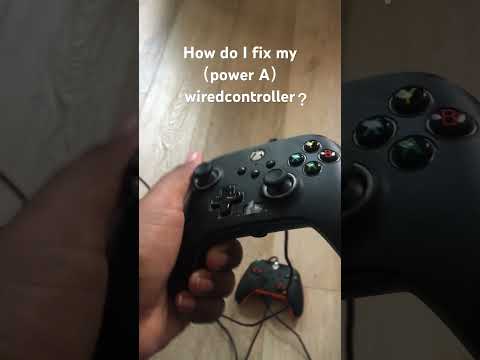
So, your PowerA controller has decided to take an unscheduled break, huh? Don’t worry, it’s a common gamer woe. The reasons for a PowerA controller ceasing to function are varied, but they often boil down to a few key culprits: connection issues, power problems, software glitches, or physical damage.
Let’s break down each potential problem, so you can get back to dominating your favorite virtual worlds.
Diagnosing the Problem
Before you resign yourself to buying a new controller, systematically troubleshoot the issue. Here’s a detailed approach:
1. Power Source (Batteries or Cable)
- Wired Controllers: Start with the obvious. Is the USB cable securely connected to both the controller and the console/PC? Cables can become worn out, especially near the connectors. Try a different USB port on your device. The original cable may also be defective; try another micro USB cable if possible.
- Wireless Controllers: Low batteries are the nemesis of wireless gaming. Replace the AA batteries with a fresh set. Ensure they’re inserted correctly, paying close attention to the polarity (+ and -) markings. Even if the batteries aren’t completely drained, a low charge can cause connectivity issues. Consider investing in rechargeable batteries and a charging dock for convenience.
2. Connection Issues
- Syncing Problems: The controller might have lost its connection to the console.
- Xbox: Press and hold the small sync button on both the controller and the console until the Xbox button on the controller starts flashing rapidly. This indicates that it’s searching for a connection.
- Nintendo Switch: In the Switch’s system settings, navigate to “Controllers and Sensors” and then “Change Grip/Order.” Follow the on-screen instructions to sync the controller.
- PC: Make sure Bluetooth is enabled. In Windows, go to Settings > Devices > Bluetooth & other devices, and pair your controller.
- Distance and Interference: Wireless controllers have a limited range. Make sure you’re within a reasonable distance from the console (typically around 30 feet). Obstacles like walls, furniture, and electronic devices can interfere with the Bluetooth signal. Try moving closer to the console and removing any potential sources of interference.
- Too Many Devices: Some consoles, particularly older Xbox models, can struggle with too many connected devices. Try disconnecting other Bluetooth devices (headsets, keyboards, etc.) to see if that resolves the issue.
3. Software and Firmware
- Controller Settings: Ensure the game you’re playing supports controller input and that the controller is correctly configured in the game’s settings menu. Some games require you to manually enable controller support.
- Firmware Updates: Outdated firmware can cause compatibility problems and performance issues. Check the PowerA Gamer HQ app (if available for your controller model) for firmware updates. Updating the firmware can often resolve connectivity and functionality problems.
- Driver Issues (PC): If you’re using the controller on a PC, ensure that the correct drivers are installed. Windows usually installs drivers automatically, but sometimes you may need to manually download and install them from the PowerA website.
- Console Software: Make sure the console has the latest software version to avoid any conflict with the PowerA controller.
4. Resetting the Controller
- Soft Reset: A soft reset involves disconnecting and reconnecting the controller.
- Xbox: To perform a soft reset, go to Settings > Devices > Bluetooth Devices. Highlight the controller you want to reset, press the Options button, then select Forget Device.
- Hard Reset: A hard reset involves using a pin or paperclip to press a reset button, typically located on the back of the controller near the battery compartment (if applicable). Hold the button down for a few seconds.
5. Physical Damage
- Accidental Drops and Spills: Controllers are surprisingly fragile. A drop can damage internal components, and liquids can cause corrosion. If you suspect physical damage, carefully inspect the controller for any visible signs of damage.
- Button or Stick Issues: Are any buttons stuck or unresponsive? Is there noticeable stick drift (where the analog sticks move on their own)? These issues often indicate wear and tear or internal damage.
6. Connection Problems due to Damaged Connections
There may be an issue with the connections between the controller’s LED and its power source. This could be due to a fall or liquid spillage. The best course of action is to inspect the connections with a voltage tester after opening the controller.
Frequently Asked Questions (FAQs)
Here are some common questions and solutions regarding PowerA controller problems:
FAQ 1: Why is my PowerA controller blinking and not working?
A blinking controller usually indicates that it’s trying to connect (or reconnect) to the console. It can also mean the batteries are low, or there is a problem with its connections. Try repairing the controller (re-syncing it to the console) and/or replacing the batteries.
FAQ 2: How do I reset my PowerA wireless switch controller?
Hold the program button down for 2-3 seconds. The LED Connection Indicator will slowly flash, signaling the controller is in program mode. Press and hold the Assign Program Button for 5 seconds to reset to no function.
FAQ 3: Why won’t my Xbox controller connect even when plugged in?
First, ensure the USB port on the console/PC is functioning properly. Try connecting another device to the port. Also, make sure the controller is charged. If these don’t work, the cable itself might be faulty; try a different USB cable.
FAQ 4: Do PowerA controllers have a warranty?
Yes, PowerA typically offers a two-year replacement warranty with proof of purchase. Retain your sales receipt in case you need to claim warranty service.
FAQ 5: Can you update a PowerA controller?
Some PowerA controllers support firmware updates through the PowerA Gamer HQ app. Check the app to ensure your controller has the latest firmware version.
FAQ 6: Does resetting a controller fix drift?
Sometimes, yes. A soft reset can resolve minor software glitches that cause stick drift. If that doesn’t work, try a hard reset. If the drift persists, it’s likely a hardware issue.
FAQ 7: How do I turn on my PowerA controller?
Press down the Xbox button (or the equivalent button on other platforms) on your controller until your console powers on. The controller’s Status LED will illuminate to indicate your controller is connected.
FAQ 8: Why did my wired Xbox controller stop working?
The cable could be worn out or broken. Make sure it’s securely plugged in on both ends. If that’s not the issue, unplug it from the Xbox One and plug it into a different USB port on the console. If the controller still won’t turn on, disconnect the Play & Charge cable and try a different micro USB cable.
FAQ 9: How do I reset my PowerA controller for advance-gaming buttons?
Hold the program button down for 2 seconds. The center LEDs will slowly flash red, signaling the controller is in program mode. Press and hold the program button for 5 seconds to reset to no function.
FAQ 10: Why is my PowerA controller not working on Xbox One?
Several reasons: damaged connections, low batteries, syncing issues, or outdated firmware. Try the troubleshooting steps outlined above to identify and resolve the problem.
FAQ 11: Can you break in a controller?
The term “breaking in” is more applicable to mechanical keyboards than controllers. Modern controllers don’t typically require a break-in period. As long as the controller is calibrated and connected, it should function optimally.
FAQ 12: How do you fix a wired controller that won’t turn on?
Plug a different USB-C cable into your controller and then plug the other end into your Xbox or PC. If the controller turns on when both ends are properly connected, the problem might be with the USB-C cable that came with your controller.
FAQ 13: How do you reset a wired Xbox One controller?
Power off the Xbox One controller by pressing the Xbox button for 10-15 seconds. Remove the batteries from the back of the controller. Place the batteries back in the Xbox One controller. Press the Xbox button to power the Xbox One controller.
FAQ 14: How do I get my wired Xbox controller to work?
Using any microUSB cable, plug the small end of the cable into the slot on the back of the controller, and the USB plug into a port on the console. Now, turn on your console and wait a few seconds until the Xbox button on the controller and on the console both glow solidly. You’re synced.
FAQ 15: How do I know if it’s time to replace my controller?
If you’ve exhausted all troubleshooting steps, and the controller still doesn’t function correctly, it may be time to consider a replacement. Signs that indicate a controller needs replacing include:
- Persistent stick drift even after cleaning and resetting.
- Unresponsive or stuck buttons.
- Physical damage that affects functionality.
- Frequent connection issues that cannot be resolved.
Further Learning
If you’re interested in the science behind gaming and how controllers impact the gaming experience, consider exploring resources from organizations like the Games Learning Society. The Games Learning Society, or GamesLearningSociety.org, offers a range of insights into the cognitive and educational aspects of gaming.
Conclusion
A malfunctioning controller can be frustrating, but with a systematic approach, you can often diagnose and resolve the problem. Remember to check the power source, connection, software, and physical condition of the controller. If all else fails, consider utilizing the PowerA warranty or purchasing a replacement. Happy gaming!