Why Does the EA App Keep Saying “Temporarily Lost Connection”?
Fast answer first. Then use the tabs or video for more detail.
- Watch the video explanation below for a faster overview.
- Game mechanics may change with updates or patches.
- Use this block to get the short answer without scrolling the whole page.
- Read the FAQ section if the article has one.
- Use the table of contents to jump straight to the detailed section you need.
- Watch the video first, then skim the article for specifics.
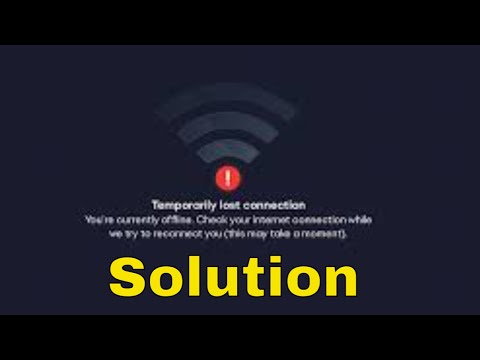
The frustrating “Temporarily Lost Connection” error within the EA App stems from a variety of potential causes, typically boiling down to issues with your internet connection, the EA servers, or the EA App itself. It indicates a disruption in the communication between your device and EA’s servers. This can be due to something as simple as a brief internet hiccup on your end, or as complex as a server-side outage affecting thousands of players. The “temporary” part of the message suggests that the app anticipates the connection to be restored shortly, but persistent occurrences require deeper troubleshooting to pinpoint the root cause. Understanding these various causes, and knowing how to troubleshoot them, is key to getting back into your favorite EA games.
Understanding the Culprits Behind the “Temporarily Lost Connection” Error
Let’s break down the common reasons why you might be seeing this error message:
-
Internet Connection Problems: This is the most frequent culprit. A weak or unstable Wi-Fi signal, router issues, or problems with your Internet Service Provider (ISP) can all lead to connection drops. Even a momentary lapse in connectivity is enough to trigger the error.
-
EA Server Issues: Like any online service, EA’s servers occasionally experience outages, maintenance, or unexpected problems. When this happens, the EA App will struggle to connect, resulting in the error message. These server issues can be region-specific or global.
-
EA App Glitches: The EA App, while intended to be an improvement over Origin, can still suffer from bugs, corrupted files, or conflicts with other software. These issues can prevent the app from establishing a stable connection to EA’s servers.
-
Firewall and Antivirus Interference: Your firewall or antivirus software might be incorrectly identifying the EA App as a threat and blocking its connection. This is particularly common after updates to either the app or your security software.
-
Account Linking Problems: Issues with how your EA account is linked to other platforms (like Steam or Xbox Live) can also lead to connectivity problems.
-
Outdated App Version: Using an outdated version of the EA App can cause compatibility problems and connection errors. EA regularly releases updates to address bugs and improve performance.
-
Conflicting Applications: Certain applications running in the background, particularly those related to VPNs or proxy servers, can interfere with the EA App’s connection.
-
Incorrect Date and Time Settings: Surprisingly, an incorrect date and time on your computer can disrupt secure connections and lead to the “Temporarily Lost Connection” error.
Troubleshooting Steps to Fix the Error
Here’s a comprehensive guide to troubleshooting the “Temporarily Lost Connection” error:
-
Check Your Internet Connection: The first step is to ensure that your internet connection is stable and working correctly.
- Restart your router and modem: This is a classic troubleshooting step that often resolves connection issues. Unplug them, wait 30 seconds, plug them back in, and wait for them to fully power on.
- Test your internet speed: Use an online speed test to verify that you’re getting the speeds you’re paying for.
- Check your Wi-Fi signal strength: If you’re using Wi-Fi, make sure you have a strong signal. Try moving closer to your router or using a wired connection for a more stable connection.
- Contact your ISP: If you suspect there’s a problem with your internet service, contact your ISP for assistance.
-
Check EA Server Status: Before diving into more complex troubleshooting, check if EA’s servers are experiencing any issues. You can usually find this information on the EA Help website or through social media channels like Twitter. If there’s a known outage, the best course of action is to wait it out.
-
Restart the EA App: A simple restart can often resolve temporary glitches. Fully close the EA App and then relaunch it.
-
Clear the EA App Cache: Clearing the cache can remove corrupted files that might be causing connection problems.
- Open the EA App.
- Click the menu icon (three horizontal lines) in the top-left corner.
- Go to Help > App recovery.
- Select Clear cache.
-
Update the EA App: Make sure you’re running the latest version of the EA App. The app usually prompts you to update automatically, but you can also manually check for updates.
-
Check Firewall and Antivirus Settings: Ensure that your firewall and antivirus software are not blocking the EA App’s connection.
- Add the EA App as an exception in your firewall and antivirus settings.
- Temporarily disable your firewall or antivirus to see if it’s the cause of the problem (but remember to re-enable it afterward).
-
Verify Account Linking: Make sure your EA account is correctly linked to other platforms like Steam or Xbox Live.
- Log in to your EA account on the EA website.
- Go to the Connections section and verify that your other accounts are properly linked.
-
Disable VPNs and Proxy Servers: If you’re using a VPN or proxy server, try disabling it to see if it resolves the issue.
-
Check Date and Time Settings: Ensure that your computer’s date and time settings are accurate.
- In Windows, go to Settings > Time & Language > Date & Time and make sure “Set time automatically” is enabled.
-
Reinstall the EA App: If none of the above steps work, try uninstalling and reinstalling the EA App. This can resolve more persistent issues.
-
Run the EA Error Reporter: This tool can help EA diagnose and troubleshoot issues you might be experiencing. It can be used even if you can’t open the EA App.
-
Clear the DNS Cache: Sometimes, clearing your DNS cache can resolve connectivity issues.
- Open Command Prompt as administrator.
- Type
ipconfig /flushdnsand press Enter.
- Reinstall Network Adapters
- Press Windows Key + X.
- Click Device Manager
- Expand Network Adapters
- Right click on the Network Adapter and select Uninstall Device.
- Restart your device and the network adapters will be reinstalled automatically.
-
Contact EA Support: If you’ve tried all of the above steps and you’re still experiencing the “Temporarily Lost Connection” error, it’s time to contact EA Support for assistance. They may be able to identify specific problems with your account or network configuration.
-
Consider other factors: It may simply be that the game you are trying to play is having network issues and that you just need to try again later.
By systematically working through these troubleshooting steps, you should be able to pinpoint the cause of the “Temporarily Lost Connection” error and get back to enjoying your EA games.
Frequently Asked Questions (FAQs)
1. Why does the EA App keep disconnecting me from the game?
Frequent disconnections can be caused by unstable internet, server issues, firewall blocking the app, or outdated app versions. Work through the troubleshooting steps outlined above to identify the root cause.
2. How do I check the EA server status?
Visit the EA Help website or follow EA’s social media channels (like Twitter) for updates on server status and maintenance.
3. Will uninstalling the EA App delete my games?
No, uninstalling the EA App will not delete your games. However, you won’t be able to play them until you reinstall the app.
4. How do I clear the EA App cache?
Open the EA App, click the menu icon (three lines), go to Help > App recovery, and select Clear cache.
5. What should I do if my firewall is blocking the EA App?
Add the EA App as an exception in your firewall settings. Consult your firewall’s documentation for specific instructions.
6. How do I update the EA App?
The EA App usually updates automatically. You can also manually check for updates by restarting the app.
7. Why is my EA account not linking to Steam?
Ensure you’re using the correct EA account credentials and that your Steam account is not already linked to another EA account.
8. Can a VPN cause connection issues with the EA App?
Yes, VPNs can sometimes interfere with the EA App’s connection. Try disabling your VPN to see if it resolves the issue.
9. Is it possible to play EA games offline?
Some EA games offer offline play, but you’ll typically need to be online to download and install them initially.
10. Why does the EA App say I’m offline even when I’m connected to the internet?
This can be due to firewall issues, incorrect date and time settings, or problems with the EA App itself.
11. What is the EA Error Reporter?
The EA Error Reporter is a tool that helps EA diagnose and troubleshoot issues you might be having with your games or the EA App.
12. How often does EA perform server maintenance?
EA typically performs server maintenance on a regular basis. Check their official channels for schedules.
13. What is the best way to contact EA Support?
You can contact EA Support through the EA Help website or their social media channels.
14. Can incorrect date and time settings really cause connection issues?
Yes, incorrect date and time settings can disrupt secure connections and lead to the “Temporarily Lost Connection” error.
15. Are there resources available to help game developers better understand network issues and connectivity?
Yes, educational resources are available! For instance, the Games Learning Society offers valuable insights into game development and learning: https://www.gameslearningsociety.org/. Understanding how games are built can help improve the playing experience and perhaps provide insight into how to solve common problems like the “Temporarily Lost Connection” error.
If you’re still experiencing issues after going through these steps, it may be related to your internet configuration. You might want to contact your ISP for additional assistance.