Why Does My Sims 3 Stop Working? Troubleshooting Common Issues
Fast answer first. Then use the tabs or video for more detail.
- Watch the video explanation below for a faster overview.
- Game mechanics may change with updates or patches.
- Use this block to get the short answer without scrolling the whole page.
- Read the FAQ section if the article has one.
- Use the table of contents to jump straight to the detailed section you need.
- Watch the video first, then skim the article for specifics.
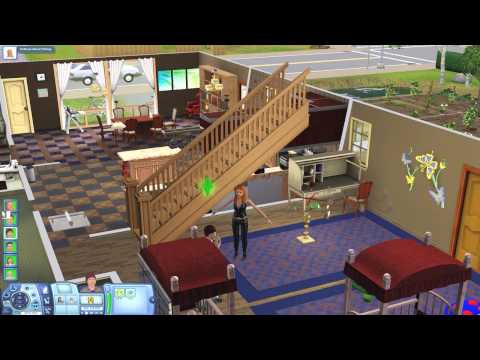
The Sims 3, a beloved life simulation game, can sometimes be frustrating when it decides to stop working unexpectedly. A range of issues can cause your game to crash, freeze, or fail to launch. Generally, these problems stem from conflicts with custom content, incorrect game settings, outdated drivers, corrupted files, or issues with the game launcher itself. Understanding these potential pitfalls is the first step towards getting your Sims back on track. Here’s a comprehensive look at the common causes and what you can do to fix them.
Common Culprits Behind Sims 3 Malfunctions
Several factors can contribute to the game malfunctioning. Here’s a deeper dive into the most frequent culprits:
Custom Content and Mods
Custom content (CC) and mods add a lot of flavor to the game, but they can also be a major source of problems. If a piece of CC is corrupted, outdated, or conflicts with other files, it can easily lead to crashes or freezes. The game attempts to read and process this data, and if it’s flawed, it can cause instability.
- How to Check: A quick check is to temporarily disable all custom content and mods in the launcher. If the game works smoothly without them, then you know the issue lies within this collection. You’ll then need to go through and identify the specific problematic files which can be time-consuming but is crucial to resolving the problem.
Game Settings
Improper game settings can also lead to instability. Sims 3, being a graphically demanding game, can struggle with certain configurations, especially on older hardware.
- Windowed Mode: Try playing The Sims 3 in windowed mode. It can reduce the strain on your graphics card and may prevent crashing, particularly if the full-screen mode is causing the issues. You can often switch to windowed mode in the game settings, or use the Alt + Enter shortcut while in-game.
- Graphics Settings: Consider lowering your graphics settings (texture quality, shadow quality, etc.) if your PC is struggling with the game. This can improve performance and reduce the likelihood of crashes.
- Memories, Store and Loading Screens: Turn off Memories, the in-game Store and interactive Loading screens can also improve stability.
Outdated Graphics Drivers
Outdated graphics card drivers are a surprisingly common reason for game crashes. Your graphics card needs the latest software to run games properly and take advantage of newer optimizations.
- Updating Drivers: Visit the website for your graphics card manufacturer (NVIDIA, AMD, or Intel) and download the latest drivers for your specific card model. Ensure to uninstall your old drivers before installing the new ones.
Corrupt Game Files
Sometimes, the game’s installation files can become corrupted. This can happen due to improper shutdowns, software conflicts, or even hardware issues.
- Repairing the Game: The solution is to repair the game through the EA app (formerly Origin). Open the app, find The Sims 3 in your library, and look for the “Repair” option. This will scan your installation and fix any corrupted files.
EA App Issues
If you’re launching the game through the EA app, issues with the app itself can affect your ability to play Sims 3.
- Restarting EA App: A simple restart of the EA app can resolve many temporary problems. If that doesn’t work, exit the application completely (including the background services) via the Task Manager and then relaunch it.
- Reinstall the EA App: Sometimes, if the problem persists, you can clean uninstall the app and reinstall it again. Make sure you do this following the procedures of the specific OS.
Conflicts with Background Programs
Running too many programs in the background can strain your computer’s resources.
- Closing Background Programs: Close any unnecessary programs before running Sims 3. This can free up memory and CPU resources, which is vital for running the game smoothly.
Overclocking
If you’ve overclocked your CPU or graphics card, it can cause problems.
- Revert to Default Settings: Reset your hardware to its default clock speed if you are facing issues. This ensures hardware is running at stable, designed speeds.
System Requirements
Ensure your computer meets the game’s minimum or recommended system requirements.
- Check System Specs: If your computer doesn’t meet the requirements it can struggle to run the game properly resulting in instability and crashing.
15 Frequently Asked Questions (FAQs) About Sims 3 Issues
To provide you with even more assistance, here are 15 frequently asked questions about common problems in The Sims 3:
-
Why does my Sims 3 game keep crashing?
- A common cause of crashes is conflicting custom content. Try disabling it to diagnose the issue. Improper game settings, outdated drivers, and corrupted files can also lead to frequent crashing.
-
Why won’t The Sims 3 launch?
- Often due to issues with the EA App (formerly Origin) or corrupt game files. Try restarting the EA App, repairing the game through the app or in some instances it will need to be completely uninstalled and reinstalled. Check that your system matches the specifications of the game.
-
How do I fix a stuck Sim?
- Use the “resetSim” command in the cheat window. Open the cheat window with Ctrl + Shift + C, type “resetsim FirstName LastName” and press enter. If this doesn’t work, use ‘testingcheats on’ command and shift-click the sim to reset it.
-
Can I play Sims 3 without the EA App?
- No, the EA App (or Origin previously) is required to play Sims 3 even if you purchased it on disc. The app acts as a launcher and DRM (digital rights management) platform.
-
My Sims are not responding to my commands; why?
- Sometimes, if a Sim’s needs are low, they can get unresponsive. Make sure their needs are met, and try resetting them using the “resetSim” command. Make sure to also reset the object they are interacting with, or are going to be interacting with.
-
What are the most common cache files to delete in Sims 3?
- The most important cache files to delete are: CasPartCache.package, compositorCache.package, scriptCache.package, and simCompositorCache.package. These files store temporary data and can cause conflicts if they become corrupted. These can be found in the Sims 3 user data folder.
-
How can I find broken custom content in Sims 3?
- The process can be laborious. Start by moving all custom content out of your game’s ‘Mods’ folder. Add a small portion of files back in. Then, run the game until the problem recurs, then move those files out and replace with another small portion. Repeat the process until you can pinpoint which files are the cause of the problem.
-
Why is my Sim running everywhere in Sims 3?
- Sometimes this is an animation glitch. You can attempt to correct it by right clicking somewhere on the map and select “go here” then switch the movement type to “walk”. A Sim can also often get stuck in the sneaking animation.
-
Why does the game say “Sims 3 is already running” when it isn’t?
- This happens if the game is still running in the background. Open the Task Manager (Ctrl + Alt + Delete) and close any Sims 3 processes (TS3.exe) and then attempt to relaunch the game.
-
How can I play Sims 3 offline?
- You can play The Sims 3 offline, but you need to start the game with the EA app while having a working connection. This is because it is needed for licensing checks. Once at the game menu do not log in and select “continue without login”.
-
Will cleaning-uninstalling and reinstalling fix my Sims 3 problems?
- This is an effective approach if you have ruled out other problems such as out-of-date drivers and custom content. This can remove corrupted game files, registry issues, and other associated problems.
-
Why are my Sims dying unexpectedly?
- Sims will die if their needs are not met, if they set their kitchen on fire or from old age. Check needs are being met regularly and fit smoke detectors if required.
-
What are the minimum system requirements for running Sims 3?
- While this can vary depending on the expansions you have, ensure your PC meets the minimum requirements posted on the EA website. For basic Sims 3 it is a 2.4 GHz CPU, 1.5 GB of RAM and a 256 MB graphics card. Check that your system is capable of handling this and if you have multiple expansions installed, be aware that the system specifications are higher.
-
What should I do if the EA app isn’t working?
- Force quit the app using the task manager and relaunch it. Clear the app’s cache or completely reinstall it.
-
Can overclocking cause problems with Sims 3?
- Yes. Overclocking can make your computer unstable, causing crashes and other issues. Ensure that your CPU and memory are running at their official speed rates and not over their recommended speeds.
By carefully addressing these issues and frequently asked questions, you’ll be well-equipped to get your Sims 3 game running smoothly and continue enjoying your virtual lives.