Why Does My Wii Look Pixelated? A Comprehensive Guide to Improving Your Wii’s Visuals
Fast answer first. Then use the tabs or video for more detail.
- Watch the video explanation below for a faster overview.
- Game mechanics may change with updates or patches.
- Use this block to get the short answer without scrolling the whole page.
- Read the FAQ section if the article has one.
- Use the table of contents to jump straight to the detailed section you need.
- Watch the video first, then skim the article for specifics.
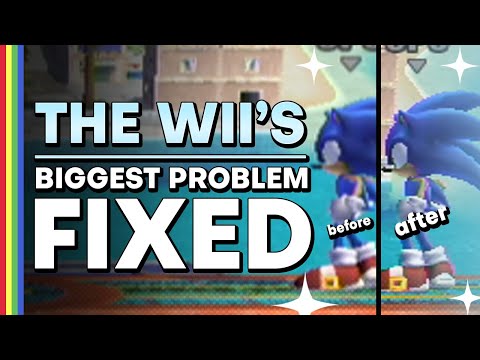
The simple answer: your Wii likely looks pixelated because its native resolution is significantly lower than modern TVs. The Wii’s standard output is 480i (interlaced), and its enhanced output is 480p (progressive scan). Modern TVs, especially HD (High Definition) and 4K TVs, boast resolutions of 720p, 1080p, or even 2160p. When you display a low-resolution image on a high-resolution screen, the TV has to stretch the image, leading to noticeable pixelation and a blurry or blocky appearance. Think of it like blowing up a small digital photo to poster size; the individual pixels become much more apparent. But don’t despair! There are steps you can take to significantly improve your Wii’s visual presentation.
Understanding the Problem: Resolution and Scaling
The key to understanding why the Wii looks pixelated lies in understanding resolution and scaling.
- Resolution: This refers to the number of pixels that make up an image. Higher resolution means more pixels, resulting in a sharper, more detailed image. The Wii’s 480i/p output simply doesn’t have the pixel density of modern games and media.
- Scaling: When you connect your Wii to your TV, the TV has to “scale” the image, essentially stretching it to fit the screen. This process involves the TV trying to fill in the missing pixels, often leading to a blurry or pixelated result.
Solutions: Improving Your Wii’s Visual Output
While you can’t magically transform your Wii into a 4K gaming machine, you can implement several strategies to improve its visual fidelity.
1. Use Component Cables and Enable 480p
This is the most important step. The Wii comes standard with composite cables (the yellow, red, and white plugs). These cables carry a lower quality signal. Component cables (red, green, blue for video and red, white for audio) offer a much better signal, allowing the Wii to output in 480p.
- How to do it: Purchase a set of component cables for the Wii. Connect them to the corresponding ports on your TV. Then, go into your Wii’s settings: Wii Options -> Wii Settings -> Screen -> TV Resolution. Select EDTV or HDTV (480p). Confirm your selection.
2. Consider an HDMI Adapter/Upscaler
While the Wii doesn’t have a native HDMI output, several Wii to HDMI adapters are available. Be warned: these adapters are not all created equal. Some simply convert the analog signal to HDMI without improving the resolution. Others claim to upscale the image to 720p or 1080p.
- Important Note: A true upscaler analyzes the image and adds detail, while cheaper adapters simply stretch the image. Read reviews carefully before purchasing to ensure you’re getting a quality product that actually improves the picture.
3. Tweak Your TV Settings
Modern TVs often have various picture settings that can affect the Wii’s appearance. Experiment with settings like:
- Sharpness: Adjusting sharpness can sometimes reduce the appearance of blurring, but too much sharpness can introduce artifacts.
- Noise Reduction: This setting can help smooth out some of the pixelation, but it can also soften the image.
- Game Mode: Many TVs have a “Game Mode” that reduces input lag (the delay between your controller input and the action on screen) and may also optimize picture settings for gaming.
4. Play on a Smaller or Older TV
This might seem counterintuitive, but playing your Wii on a smaller TV or even an older, standard-definition TV can actually improve the perceived image quality. A smaller screen means the pixels are less stretched, resulting in a less pixelated image.
5. Embrace the Nostalgia
Ultimately, the Wii is a console from a different era. While you can improve the visuals to some extent, you’ll never achieve the crispness of modern games. Try to embrace the nostalgia and focus on the fun gameplay that made the Wii so popular. The Games Learning Society and similar organizations highlight the importance of gameplay and learning through games, proving that graphics aren’t everything. You can explore the innovative approaches to game-based learning at GamesLearningSociety.org.
Frequently Asked Questions (FAQs)
1. Is 480i or 480p better for Wii?
480p is significantly better than 480i. 480p (progressive scan) displays all the lines of resolution at once, creating a sharper and more stable image. 480i (interlaced) displays alternating lines, which can result in a flickering effect.
2. Will a Wii to HDMI adapter make my games look like HD?
No, not truly. Some Wii to HDMI adapters claim to upscale to 720p or 1080p, but the results are often not as good as true HD. They primarily convert the signal and may add some basic scaling, but they don’t fundamentally change the original resolution of the game.
3. Why do Wii graphics look so bad on my new TV?
Your Wii graphics look bad on your new TV because the Wii’s native resolution is much lower than your TV’s resolution. The TV has to stretch the image to fill the screen, resulting in pixelation and blurring.
4. Can I make my Wii games 1080p?
No, not natively. The Wii’s maximum output is 480p. While some HDMI adapters claim to upscale to 1080p, this is a simulated effect and doesn’t actually add more detail to the image.
5. What resolution is the Wii in pixels?
The Wii’s native resolution is 720×480, which is then stretched or squished depending on the aspect ratio setting (4:3 or 16:9).
6. How do I fix my Wii resolution?
Go to Wii Options -> Wii Settings -> Screen -> TV Resolution. Select EDTV or HDTV (480p) if you are using component cables.
7. Does the Wii support widescreen?
Yes, the Wii supports widescreen (16:9) aspect ratio. You can change the aspect ratio in the Wii’s settings under the “Screen” menu.
8. Is the Wii capable of 720p?
No, the Wii is not natively capable of 720p.
9. Will Wii work on a 4K TV?
Yes, the Wii will work on a 4K TV, but you may need an adapter to connect it. The image quality will likely be poor due to the resolution difference.
10. What framerate does the Wii run at?
The Wii has some games that run at 60fps and some that run at 30fps. The framerate depends on the specific game.
11. Why does my Wii disc keep skipping?
Skipping discs can be caused by a dirty lens, scratched disc or damaged lens. Consider cleaning the lens and the disc, or getting the lens repaired.
12. How do I clean the laser lens on my Wii?
Nintendo recommends using the Wii Lens Cleaning Kit. You can also carefully clean it with a cotton swab and rubbing alcohol, but be very gentle.
13. Is the Wii better vertical or horizontal?
The best placement (vertical or horizontal) depends on your setup and airflow. Ensure the Wii has adequate ventilation in either position.
14. Why won’t my Wii read discs?
The problem may be a dirty lens. Cleaning the console with a lens-cleaning kit should be your first step, and if that does not work, a system update might.
15. Is the Wii mini compatible with component cables?
No, the Wii Mini only has composite video output. This is one of the main differences between the Wii and the Wii Mini.