Why Can’t I Play Roblox on Mobile?
Fast answer first. Then use the tabs or video for more detail.
- Watch the video explanation below for a faster overview.
- Game mechanics may change with updates or patches.
- Use this block to get the short answer without scrolling the whole page.
- Read the FAQ section if the article has one.
- Use the table of contents to jump straight to the detailed section you need.
- Watch the video first, then skim the article for specifics.
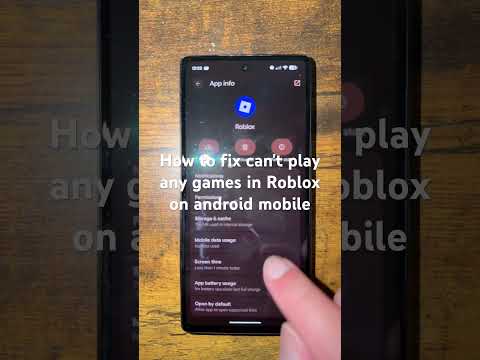
Roblox on mobile offers a fantastic way to dive into millions of user-created games on the go, but sometimes, things just don’t work as expected. There are numerous reasons why you might be experiencing issues playing Roblox on your mobile device, ranging from simple fixes to more complex troubleshooting. The most common culprits include internet connectivity problems, outdated app versions, insufficient device specifications, storage limitations, account restrictions, and software conflicts. Understanding these issues is the first step towards getting back into your favorite Roblox experiences. Let’s explore each of these in detail and provide potential solutions to get you back to gaming!
Troubleshooting Common Roblox Mobile Issues
1. Internet Connectivity Issues
A stable internet connection is crucial for playing Roblox. Mobile gaming relies heavily on a consistent data stream.
- Weak Wi-Fi Signal: Check your Wi-Fi signal strength. If it’s weak, move closer to your router or try switching to a different Wi-Fi network.
- Mobile Data Problems: If you’re using mobile data, ensure you have a strong signal (3G, 4G, or 5G). Try resetting your mobile data connection by turning airplane mode on and off. Also, verify that Roblox has permission to use mobile data in your device settings.
- Network Congestion: During peak hours, internet service providers may experience network congestion, leading to slower speeds and connection drops. Try playing Roblox at off-peak times.
- VPN Issues: While VPNs can enhance privacy, they can sometimes interfere with your connection to Roblox servers. Try disabling your VPN to see if it resolves the issue.
2. Outdated App Version
Running an outdated version of the Roblox app can lead to compatibility issues and performance problems.
- Check for Updates: Visit the App Store (iOS) or Google Play Store (Android) and check for any available updates for the Roblox app. Update the app to the latest version.
- Automatic Updates: Enable automatic app updates in your device settings to ensure you’re always running the most current version of Roblox.
3. Insufficient Device Specifications
Roblox, while generally accessible, still requires certain minimum device specifications to run smoothly.
- RAM Limitations: Roblox can be memory-intensive, especially for games with high-quality graphics and complex scripts. Ensure your device has enough RAM (Random Access Memory) to handle the game. Closing other apps running in the background can free up RAM.
- Processor Requirements: A faster processor improves game performance. Check your device’s specifications against the recommended requirements for Roblox.
- Operating System Compatibility: Make sure your device’s operating system (iOS or Android) is compatible with the latest version of Roblox. Outdated operating systems may not support newer app features.
4. Storage Limitations
Insufficient storage space on your device can prevent Roblox from running correctly.
- Clear Cache and Data: In your device settings, navigate to the Roblox app and clear its cache and data. This can free up storage space and resolve performance issues.
- Uninstall Unused Apps: Uninstall apps you no longer use to create more storage space.
- Move Files to External Storage: If possible, move photos, videos, and other files to external storage (e.g., an SD card) to free up internal storage space.
5. Account Restrictions
Account restrictions or bans can prevent you from accessing Roblox.
- Check Account Status: Log in to the Roblox website on a browser to check your account status. Look for any messages or notifications regarding bans, suspensions, or other restrictions.
- Age Verification: Ensure your account is properly age-verified. Some games have age restrictions that may prevent access if your account’s age is not verified.
- Privacy Settings: Review your privacy settings to make sure they aren’t overly restrictive and preventing you from accessing certain games or features.
6. Software Conflicts
Conflicts with other apps or software on your device can interfere with Roblox’s functionality.
- Close Background Apps: Close all unnecessary apps running in the background before launching Roblox.
- Restart Your Device: Restarting your device can resolve software conflicts and clear temporary files.
- Antivirus Software: In rare cases, antivirus software may mistakenly flag Roblox as a threat. Try temporarily disabling your antivirus software to see if it resolves the issue.
- Operating System Issues: In some cases, a recent OS update can cause conflicts with the Roblox app. Look for troubleshooting advice specific to your device and OS version.
7. Corrupted Installation
A corrupted Roblox installation can lead to various errors and prevent the game from launching.
- Reinstall Roblox: Uninstall the Roblox app from your device and then reinstall it from the App Store or Google Play Store. This ensures you have a clean installation.
8. Device-Specific Glitches
Some issues may be specific to your device model or operating system.
- Check Online Forums: Search online forums and communities for discussions about Roblox issues specific to your device. Other users may have found solutions to similar problems.
- Contact Device Support: If you suspect a device-specific issue, contact your device manufacturer’s support team for assistance.
9. Game-Specific Problems
Sometimes, the issue isn’t with Roblox itself, but with a particular game you’re trying to play.
- Game Glitches: Some games may have glitches or bugs that prevent them from loading or running correctly.
- Developer Issues: The game’s developer may be experiencing technical difficulties or performing maintenance, which can temporarily prevent you from accessing the game.
10. Firewall and Antivirus Interference
- Check Firewall Settings: Make sure your device’s firewall isn’t blocking Roblox’s connection to the internet.
- Review Antivirus Software: Some antivirus programs may mistakenly identify Roblox files as potential threats. Check your antivirus software’s logs and add Roblox to the list of exceptions or trusted programs.
Frequently Asked Questions (FAQs) about Roblox on Mobile
1. Why does Roblox keep crashing on my phone?
Roblox can crash due to various reasons, including insufficient RAM, an outdated app version, internet connectivity issues, or software conflicts. Try closing other apps, updating Roblox, checking your internet connection, and restarting your device.
2. Is my phone compatible with Roblox?
Most modern smartphones are compatible with Roblox. However, performance can vary depending on the device’s specifications. Check the Roblox system requirements to ensure your phone meets the minimum requirements for running the app smoothly.
3. How much data does Roblox use on mobile?
Roblox’s data usage depends on the game you’re playing and the graphics settings. On average, it can use between 50MB to 200MB per hour. Monitor your data usage and adjust graphics settings to reduce data consumption.
4. Why is Roblox so laggy on my phone?
Lag in Roblox can be caused by slow internet connection, low device performance, or high graphics settings. Try improving your internet connection, lowering graphics settings, and closing background apps.
5. Can I play Roblox on a tablet?
Yes, Roblox is playable on a variety of Android and Apple tablets. Popular options include the iPad, Samsung Galaxy Tab, and Google Nexus. These tablets generally have large screens and powerful processors, making them suitable for Roblox.
6. How do I update Roblox on my phone?
To update Roblox, go to the App Store (iOS) or Google Play Store (Android) and search for “Roblox”. If an update is available, tap the “Update” button.
7. What is error code 268 on Roblox mobile?
Error code 268 often indicates a software conflict, poor internet connection, or a faulty VPN service. It can sometimes signify an account ban or deletion, so check your account status on the Roblox website.
8. Why am I getting kicked out of Roblox games?
You might be getting kicked out of Roblox games due to Roblox server issues, internet connection problems, or being temporarily banned due to suspicious activity. Error code 267 generally indicates this issue.
9. How do I clear the cache for Roblox on my phone?
To clear the cache on Android, go to Settings > Apps > Roblox > Storage > Clear Cache. On iOS, you may need to uninstall and reinstall the app.
10. What should I do if Roblox won’t install on my phone?
If Roblox won’t install, ensure you have enough storage space, a stable internet connection, and that your device meets the minimum system requirements. Also, check for any software restrictions that might be preventing the installation.
11. Is Roblox safe for kids to play on mobile?
Roblox has safety features and parental controls to protect children. However, parents should still monitor their children’s activity and educate them about online safety. Check out resources from organizations like the Games Learning Society at GamesLearningSociety.org to learn more about safe and educational gaming experiences.
12. Why can’t I hear audio in Roblox on my phone?
If you can’t hear audio, check your device’s volume settings, ensure Roblox has permission to access your microphone (if required), and try restarting the app. Also, make sure the game’s audio settings are not muted.
13. How do I report a bug in Roblox on mobile?
To report a bug, use the Roblox support page or the in-game reporting feature. Provide detailed information about the bug, including steps to reproduce it and any error messages you encountered.
14. Why does Roblox keep saying “No Internet Connection”?
If Roblox keeps saying “No Internet Connection,” verify that your device is connected to the internet. Ensure that you have a stable Wi-Fi or mobile data connection. Restart your router or mobile data to refresh your internet connection.
15. Can I play Roblox on multiple devices with one account?
Yes, you can play Roblox on multiple devices with one account. However, you can only be actively logged in on one device at a time. Attempting to log in on another device will log you out of the previous one.
By understanding these potential issues and applying the recommended solutions, you’ll be well-equipped to troubleshoot and resolve most problems that prevent you from playing Roblox on your mobile device. Happy gaming!