Why is Apex Legends the Only Game That Stutters? (It’s Not!)
Fast answer first. Then use the tabs or video for more detail.
- Watch the video explanation below for a faster overview.
- Game mechanics may change with updates or patches.
- Use this block to get the short answer without scrolling the whole page.
- Read the FAQ section if the article has one.
- Use the table of contents to jump straight to the detailed section you need.
- Watch the video first, then skim the article for specifics.
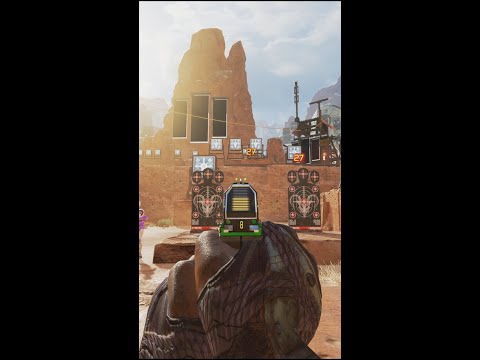
The short answer is: Apex Legends isn’t the only game that stutters. Many PC games can suffer from stuttering issues. However, there are many reasons for this to be happening. While Apex Legends is notorious for stuttering issues, that stems from a confluence of factors that make it seem that way. These factors include its popularity, its demanding graphics, server load, and the variability of PC hardware gamers use to play it. Stuttering, at its core, is a performance issue where the game appears to freeze momentarily, creating an uneven, jarring gameplay experience. To fix this, this article will delve into the reasons why Apex Legends, and many other games, stutter, and offer a range of solutions to help smooth out your gameplay.
Understanding Game Stuttering: It’s Not Just Apex
Before diving specifically into Apex Legends, it’s essential to understand the underlying causes of stuttering in PC games generally. Stuttering happens when your system struggles to maintain a consistent frame rate. Imagine a movie playing smoothly at 24 frames per second. Now imagine those frames sometimes being delivered at 24fps, then dropping to 10fps, and jumping again. That sudden change in frame rate is similar to what causes stuttering in games.
Several factors can contribute to this inconsistency, and they often interplay:
- Hardware Limitations: Your CPU, GPU, and RAM are the core components responsible for running the game. If any of these are underpowered for the game’s demands, stuttering can occur.
- Driver Issues: Outdated, corrupted, or incompatible graphics drivers can significantly impact performance.
- Software Conflicts: Other programs running in the background can consume resources and interfere with the game’s performance.
- Game Settings: High graphics settings can push your hardware beyond its limits.
- Overheating: When your components overheat, they can throttle performance to prevent damage, leading to stuttering.
- Storage Issues: Games installed on slow hard drives (HDDs) can experience stuttering, especially during loading screens or when streaming assets.
- Network Issues: For online games like Apex Legends, network lag and packet loss can mimic stuttering.
- Game Optimization: Poorly optimized games, even on powerful hardware, can stutter.
Apex Legends: Why the Stuttering Spotlight?
Apex Legends amplifies the perception of stuttering due to its inherent characteristics:
- High Player Base: Its free-to-play nature attracts a massive player base, leading to more forum posts and discussions about problems, including stuttering.
- Fast-Paced Gameplay: Apex Legends’ intense, rapid engagements make stuttering particularly noticeable and disruptive. A split-second freeze can mean the difference between victory and defeat.
- Demanding Graphics: While not the most graphically intensive game, Apex Legends still requires decent hardware to run smoothly at high settings, particularly at higher resolutions.
- Server-Side Issues: As the included document mentions, Apex’s servers can sometimes be overloaded, resulting in server-side lag that can appear as stuttering.
Troubleshooting Apex Legends Stuttering: A Practical Guide
Here’s a systematic approach to tackling stuttering issues in Apex Legends:
- Check System Requirements: Ensure your PC meets the minimum and recommended specifications for Apex Legends.
- Update Graphics Drivers: Download and install the latest drivers from NVIDIA, AMD, or Intel. A clean install (removing the old driver completely before installing the new one) is often recommended.
- Optimize In-Game Settings: Lower your graphics settings. Start by reducing:
- Texture Quality
- Shadow Detail
- Model Detail
- Effects Detail
- Anti-Aliasing
- Ambient Occlusion
- Turn off or reduce V-Sync. As the included document mentions, V-Sync can cause further stuttering.
- Monitor Hardware Temperatures: Use monitoring software like MSI Afterburner or HWMonitor to track CPU and GPU temperatures. Clean dust from your PC’s components to improve cooling. Reapply thermal paste to the CPU and GPU if necessary (proceed with caution and research proper techniques).
- Close Background Applications: End unnecessary programs running in the background, including web browsers, streaming software, and other resource-intensive applications.
- Check Internet Connection: Run a speed test to ensure you have a stable and adequate internet connection. Use a wired Ethernet connection instead of Wi-Fi for better stability.
- Adjust Power Options: Set your Windows power plan to “High Performance” to ensure your components are running at their maximum clock speeds.
- Update Windows: Keep your operating system up to date with the latest patches and updates.
- Run Apex Legends as Administrator: Right-click on the Apex Legends executable and select “Run as administrator.”
- Disable Fullscreen Optimizations: Right-click on the Apex Legends executable, go to “Properties,” then “Compatibility,” and check the box “Disable fullscreen optimizations.”
- Check Storage Drive Health: Ensure your game is installed on a healthy and relatively fast drive. Consider migrating the game to an SSD (Solid State Drive) if it’s currently on an HDD. Run a disk check to identify and repair any errors.
- RAM Considerations: Ensure you have at least 16GB of RAM for a smoother experience. 8GB may be sufficient, but 16GB is the current recommended standard for modern gaming. If you have less than 16GB, consider upgrading. Make sure the RAM is running in dual-channel configuration for increased bandwidth.
- Overclocking: If you have overclocked your CPU or GPU, try running them at their stock speeds to see if that resolves the stuttering. Overclocking can sometimes introduce instability.
- Check for Malware: Run a full system scan with a reputable antivirus program to ensure your system is free of malware.
- Reinstall Apex Legends: As a last resort, try reinstalling the game. This can resolve issues caused by corrupted game files.
It’s important to remember that fixing stuttering can be a process of elimination. Test different solutions and monitor your performance to identify what works best for your system. It is important to know that various organizations, such as the Games Learning Society are invested in studying and analyzing gameplay in an effort to learn how to improve these experiences. The GamesLearningSociety.org website offers further articles and resources.
Frequently Asked Questions (FAQs)
1. Why does my game stutter even with high FPS?
High FPS doesn’t always equate to smooth gameplay. Frame time consistency is just as important. If your frame times fluctuate wildly, you can experience stuttering even with a high average FPS. This can be due to CPU bottlenecks, VSync issues, or other background processes interfering.
2. Can low RAM cause stuttering in games?
Yes, insufficient RAM is a common cause of stuttering. When your system runs out of RAM, it starts using the hard drive as virtual memory, which is significantly slower, leading to performance drops and stuttering.
3. Does VSync always cause stuttering?
No, but VSync can introduce stuttering if your frame rate drops below your monitor’s refresh rate. When VSync is enabled and your frame rate dips, it can cause noticeable stuttering. Adaptive Sync (FreeSync or G-Sync) is a better alternative, as it dynamically adjusts the refresh rate to match your frame rate.
4. Can a bad GPU cause stuttering?
Yes, a faulty or failing GPU can definitely cause stuttering. It might be struggling to render frames correctly or experiencing thermal issues.
5. How do I know if my CPU is causing the stuttering?
Monitor your CPU usage while playing. If it’s consistently at or near 100%, your CPU is likely a bottleneck and could be causing stuttering. This may mean you need to upgrade.
6. Does upgrading RAM always fix stuttering?
Upgrading RAM can definitely help, especially if you have less than 16GB. However, it’s not a guaranteed fix. Stuttering can have multiple causes, so upgrading RAM might only partially alleviate the problem.
7. What’s the difference between stuttering and lag?
Stuttering is a local performance issue caused by your hardware struggling to render frames smoothly. Lag, on the other hand, is a network issue caused by delays in data transmission between your computer and the game server.
8. Is it better to cap my FPS or use VSync?
It depends. If you’re experiencing screen tearing, VSync is generally recommended. However, it can introduce input lag. Capping your FPS slightly below your monitor’s refresh rate (e.g., capping at 58 FPS on a 60Hz monitor) can reduce screen tearing and input lag without the full drawbacks of VSync. Experiment to see what works best for you.
9. Why do some games stutter while others run fine?
Different games have different system requirements and optimization levels. A well-optimized game can run smoothly even on modest hardware, while a poorly optimized game can stutter even on high-end systems. Also, certain games rely more heavily on specific components (CPU vs GPU) and each computer build is unique.
10. Can a dirty PC cause stuttering?
Yes, a dirty PC can cause overheating, which can lead to thermal throttling and stuttering. Dust can insulate the cooling system, preventing heat from dissipating properly.
11. How often should I update my graphics drivers?
Update your graphics drivers whenever new versions are released, especially if they include optimizations or bug fixes for the games you play.
12. What are the best graphics settings for Apex Legends on a low-end PC?
On a low-end PC, aim for the lowest possible settings:
- Lowest Texture Quality
- Lowest Shadow Detail
- Lowest Model Detail
- Lowest Effects Detail
- Disable Anti-Aliasing
- Disable Ambient Occlusion
- Use the lowest possible resolution while maintaining a playable field of view.
13. Should I disable fullscreen optimizations in Windows?
Disabling fullscreen optimizations can sometimes improve performance in older games. However, it can also cause issues with some newer games. Experiment to see if it helps or hurts your performance.
14. Does dual-channel RAM reduce stuttering?
Yes, dual-channel RAM can significantly improve performance, especially in CPU-bound games. Dual-channel provides twice the memory bandwidth compared to single-channel, which can reduce stuttering and improve frame rates.
15. What’s the best way to monitor my PC’s performance while gaming?
MSI Afterburner with RivaTuner Statistics Server (RTSS) is a popular and powerful tool for monitoring CPU and GPU usage, temperatures, frame rates, and frame times in real-time. It allows you to identify bottlenecks and optimize your settings accordingly.