Why is My HDMI Showing Picture But No Sound? A Comprehensive Guide
Fast answer first. Then use the tabs or video for more detail.
- Watch the video explanation below for a faster overview.
- Game mechanics may change with updates or patches.
- Use this block to get the short answer without scrolling the whole page.
- Read the FAQ section if the article has one.
- Use the table of contents to jump straight to the detailed section you need.
- Watch the video first, then skim the article for specifics.
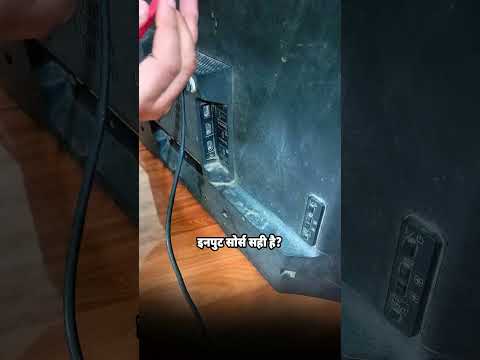
Experiencing a crystal-clear picture on your TV or monitor but hearing nothing? It’s a common tech frustration: HDMI delivering the visual goods but failing on the audio front. This issue can stem from a variety of causes, ranging from simple setting glitches to more complex hardware problems. Let’s dive into the potential culprits and, more importantly, how to troubleshoot them.
At its core, no HDMI sound despite a working picture often points to a configuration issue. This could be with your source device (like a laptop, Blu-ray player, or game console), your display device (TV or monitor), the HDMI cable itself, or even your computer’s audio drivers. This guide is designed to walk you through each of these areas systematically to pinpoint the root cause of your silent screen.
Common Causes and Troubleshooting Steps
Here’s a structured approach to diagnosing and resolving the “picture but no sound” HDMI conundrum:
1. Volume and Muting Issues
-
Check the Obvious: Start with the simple things. Ensure the volume is turned up on both your TV/monitor and the source device. Look for the mute icon on both devices and make sure it isn’t activated. Don’t just rely on visual cues; navigate through the on-screen menus of both the source and display to confirm the volume levels.
-
Remote Controls: Test the volume and mute buttons on both remote controls (TV and source device) to rule out a faulty remote as the source of the problem. Sometimes, batteries die, or buttons get stuck, leading to unexpected muting or volume control issues.
2. HDMI Cable Problems
-
The Cable Itself: HDMI cables, while seemingly robust, are susceptible to damage. Try a different HDMI cable to rule out a faulty connection. Even a slight bend or internal break can disrupt the audio signal.
-
Cable Certification: While not always necessary, using a certified HDMI cable is recommended, especially for higher resolutions (4K or 8K) and advanced audio formats like Dolby TrueHD and DTS-HD. Certified cables guarantee a certain level of performance and reliability.
-
Cable Length: Extremely long HDMI cables can sometimes experience signal degradation. If you’re using a particularly long cable, consider testing with a shorter one.
3. Source Device Audio Settings
-
Audio Output Format: Your source device needs to be configured to output a compatible audio signal. Access the audio settings on your Blu-ray player, game console, or computer and ensure it’s set to output PCM (Pulse Code Modulation) or another compatible format. Experiment with different audio formats to see if one works.
-
HDMI Audio Output Enabled: Some devices have a specific setting to enable or disable audio output over HDMI. Make sure this setting is enabled.
-
Bitstream vs. PCM: Understand the difference between Bitstream (passing the raw audio data) and PCM (converting the audio to a standard format). Experiment with both settings to see which works best with your setup. Bitstream is often preferred for surround sound systems, while PCM is generally more compatible with a wider range of devices.
4. Display Device Audio Settings
-
Input Source: Confirm that your TV or monitor is set to the correct HDMI input connected to your source device. Sometimes, accidentally selecting the wrong input can lead to picture but no sound.
-
Audio Output: Check the TV’s audio output settings. Ensure that the audio is set to come through the TV speakers (or external speakers connected to the TV). Some TVs might be set to output audio to an external receiver, even if one isn’t connected.
-
HDMI ARC/eARC: If you’re using HDMI ARC (Audio Return Channel) or eARC (Enhanced Audio Return Channel) to send audio to an external soundbar or receiver, make sure that ARC/eARC is properly enabled in both the TV and the soundbar/receiver settings. Also, double-check that the HDMI cable is plugged into the correct ARC/eARC port on both devices.
5. Computer Sound Settings (Windows)
-
Default Playback Device: In Windows, right-click on the speaker icon in the system tray and select “Open Sound settings”. In the “Output” section, make sure your TV or monitor is selected as the default playback device. If it’s not, click the dropdown menu and select it.
-
Sound Control Panel: For more advanced settings, click “Sound Control Panel” (usually located on the right side of the Sound settings window). On the “Playback” tab, right-click on your TV/monitor and select “Set as Default Device” and “Set as Default Communication Device”.
-
Driver Issues: Outdated or corrupt audio drivers can cause HDMI audio problems. Update your audio drivers through Device Manager (search for “Device Manager” in the Windows search bar). You can either search automatically for updated drivers or download the latest drivers from your motherboard manufacturer’s website.
6. Hardware Issues
-
Faulty HDMI Port: In rare cases, the HDMI port on your TV, monitor, or source device might be faulty. Try a different HDMI port on both the source and display devices.
-
Internal Sound Card Problems: If you’re using a computer, the internal sound card itself might be malfunctioning. This is less common, but it’s a possibility, especially with older computers.
7. Power Cycling
- The Universal Fix: A simple power cycle can often resolve temporary glitches. Turn off all devices (TV, source device, soundbar/receiver), unplug them from the power outlet for at least 30 seconds, and then plug them back in and turn them on.
Frequently Asked Questions (FAQs)
1. Can a bad HDMI cable cause no sound?
Yes, a damaged or low-quality HDMI cable can definitely cause sound issues. The cable’s internal wires, responsible for carrying the audio signal, can become damaged, leading to intermittent sound or complete audio loss. Testing with a different, known-good cable is a crucial troubleshooting step.
2. Does all HDMI carry sound?
Yes, all HDMI standards are designed to carry both audio and video. However, the supported audio formats and capabilities may vary depending on the HDMI version (e.g., HDMI 1.4, HDMI 2.0, HDMI 2.1).
3. How do I make HDMI my default audio device?
In Windows, right-click on the speaker icon in the system tray, select “Open Sound settings”, and then click “Sound Control Panel”. On the “Playback” tab, find your HDMI device (usually labeled with the TV/monitor name), right-click on it, and select “Set as Default Device”.
4. How do I update my HDMI driver?
HDMI doesn’t have its own driver. You need to update the drivers for your graphics card or sound card. In Device Manager, expand “Sound, video and game controllers” or “Display adapters”, right-click on your device, and select “Update driver”.
5. Why is my TV showing picture but no sound through HDMI ARC?
Ensure that HDMI ARC is enabled in both your TV and your soundbar/receiver’s settings. Also, make sure the HDMI cable is plugged into the ARC-designated HDMI port on both devices. Verify that the TV’s audio output is set to “ARC” or “HDMI ARC”.
6. My laptop has no sound through HDMI to my monitor – what should I do?
First, make sure the monitor is selected as the default playback device in Windows sound settings. Also, check your laptop’s audio settings to ensure that HDMI audio output is enabled. Finally, update your laptop’s graphics card and sound card drivers. The GamesLearningSociety.org highlights the importance of understanding technology and how to use it effectively.
7. How do I know if my HDMI port is bad?
The easiest way to check is to try a different HDMI port on both the source device and the display. If the sound works on a different port, the original port is likely faulty.
8. Can I use an HDMI audio extractor to fix my sound problem?
An HDMI audio extractor can be used to separate the audio signal from the HDMI signal and output it to a separate audio system, such as a soundbar or receiver. This can be a useful solution if your TV or monitor has limited audio output options or if you want to use a different audio system altogether.
9. What if my TV only supports stereo audio through HDMI?
If your TV only supports stereo audio, you might need to change the audio output format on your source device to “PCM” or “Stereo” to ensure compatibility.
10. Why does my streaming device (Roku, Fire Stick, etc.) have no sound through HDMI?
Check the audio output settings on your streaming device. Make sure it’s set to output a compatible audio format (like PCM or Dolby Digital). Also, ensure that the streaming device is connected directly to the TV and not through an intermediary device like an AV receiver (unless properly configured).
11. Is it possible to send audio-only through HDMI?
While HDMI is designed to transmit both audio and video, some devices can be configured to output audio-only through HDMI. However, this depends on the specific device and its capabilities. It’s generally more common to use a dedicated audio output (like a digital optical output or analog RCA outputs) for audio-only connections.
12. My sound is cutting in and out through HDMI – what’s causing this?
Intermittent sound issues often point to a loose HDMI connection or a faulty HDMI cable. Try reseating the HDMI cable at both ends and testing with a different cable. Driver issues or hardware problems can also contribute to this behavior.
13. How do I reset my TV’s audio settings?
Most TVs have an option to reset audio settings to their default values. This is usually found in the TV’s settings menu, often under “Sound” or “Audio”. Consult your TV’s user manual for specific instructions.
14. Why is my Samsung TV not playing sound through HDMI?
Samsung TVs have a “Self Diagnosis” feature that can help troubleshoot sound problems. Navigate to Settings > Support > Self Diagnosis > Sound Test. If the test reveals a problem, you can try resetting the sound settings by going to Settings > Sound > Expert Settings > Reset Sound.
15. Where can I find more technical knowledge?
The Games Learning Society is a great source of research based on educational video games that may provide additional information about different technologies. You can read about their ongoing work and explore their resources on GamesLearningSociety.org.
By following these steps and exploring the FAQs, you should be well-equipped to diagnose and fix the “picture but no sound” HDMI issue. Remember to be systematic in your troubleshooting and don’t be afraid to experiment with different settings. Good luck!