Why is My Xbox Controller Not Pairing? A Troubleshooting Guide from a Gaming Pro
Fast answer first. Then use the tabs or video for more detail.
- Watch the video explanation below for a faster overview.
- Game mechanics may change with updates or patches.
- Use this block to get the short answer without scrolling the whole page.
- Read the FAQ section if the article has one.
- Use the table of contents to jump straight to the detailed section you need.
- Watch the video first, then skim the article for specifics.
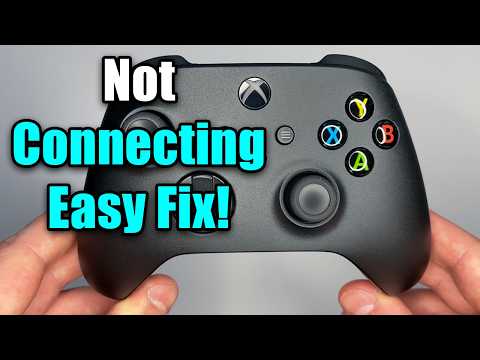
So, you’re geared up for a gaming marathon, controller in hand, only to be met with the dreaded blinking light and zero connection. Frustrating, right? Don’t throw your controller through the window just yet! There are several reasons why your Xbox controller might not be pairing, and luckily, most of them are fixable at home.
The most common culprits are:
- Low or dead batteries: This is the first and easiest thing to check. Seriously, don’t overlook it.
- Interference from other wireless devices: USB devices, microwaves, and even Bluetooth headphones can disrupt the signal.
- Outdated controller or console firmware: Software glitches can wreak havoc on pairing.
- Controller paired to another device: Your controller might be stubbornly clinging to your friend’s Xbox or a previously connected PC.
- Sync button malfunction: The sync button itself might be faulty.
- Hardware issues: Although rare, internal controller damage can prevent pairing.
Let’s dive into each of these reasons with detailed troubleshooting steps.
Troubleshooting Your Xbox Controller Pairing Issues
Here’s a structured approach to get your controller back in the game:
1. Battery Check: The Obvious, Yet Often Overlooked
It sounds simple, but ensure your controller has fresh batteries. Low batteries can cause intermittent connection issues or prevent pairing altogether. If using rechargeable batteries, make sure they are fully charged. Try swapping in a brand new set of AA batteries to rule this out entirely. And if you have a Play & Charge kit, try connecting the controller directly to the console via USB. If it works wired, but not wireless, you know the battery pack is suspect.
2. Eliminate Wireless Interference
Wireless signals are delicate. Unplug any unnecessary USB devices from your Xbox or PC, especially anything wireless. This includes USB hubs, external hard drives, and even some wired controllers. Move your Xbox away from other electronic devices that emit radio frequencies, such as microwaves and Bluetooth speakers. Even a poorly shielded USB cable can cause interference.
3. Syncing Strategies: The Heart of the Connection
The sync button is your primary tool for establishing a connection.
- Xbox Console Sync: Turn on your Xbox. Locate the small sync button on the console itself (usually on the front or side). Press and hold it until the Xbox logo starts flashing. Then, turn on your controller and press and hold the sync button on the back of the controller. Release both buttons when the controller’s Xbox button stops flashing and remains solid.
- PC Sync (Xbox Wireless Adapter): If you’re using the Xbox Wireless Adapter for Windows 10/11, plug it into your PC. Press the sync button on the adapter, then press and hold the sync button on your controller.
4. Firmware Updates: Keeping Things Current
Outdated firmware can cause all sorts of problems. Here’s how to update your controller’s firmware:
- Make sure your Xbox is connected to the internet.
- Sign in to your Xbox profile.
- Connect your controller to your Xbox using a USB cable.
- The console should prompt you to update the controller. Follow the on-screen instructions.
- If no prompt appears, go to Settings > Devices & connections > Accessories.
- Select your controller.
- If an update is available, it will be listed. Select it to begin the update process.
5. The “Other Device” Dilemma
Controllers can only be actively paired with one device at a time. If your controller was previously connected to another Xbox, PC, or even a mobile device, it might be trying to reconnect to that device. Try forgetting the controller on the other devices, or ensuring those devices are powered off completely. If all else fails, press the sync button on the controller and Xbox at the same time to force pairing.
6. Power Cycling: The Universal Fix
Sometimes, a simple reboot is all you need. Power cycle both your Xbox and your controller.
- Xbox: Press and hold the power button on the front of the Xbox for 10 seconds until it turns off completely. Unplug the power cord from the back of the console for at least 30 seconds. Plug it back in and turn the Xbox back on.
- Controller: Remove the batteries from the controller. Wait a minute, then reinsert the batteries.
7. USB Cable Sanity Check
If you’re using a USB cable to connect your controller, ensure it’s a data cable, not just a charging cable. Some charging cables only provide power and don’t transmit data. Try a different USB cable to rule out a faulty cable.
8. Hardware Inspection
If none of the above steps work, there might be a hardware problem. Visually inspect the controller for any signs of damage. If you’re comfortable, you could try opening the controller (be careful, this may void your warranty) and checking the internal connections. Look for any loose wires or damaged components. If you suspect a hardware issue, contact Xbox Support or consider purchasing a new controller.
Xbox Controller Pairing FAQs: Your Burning Questions Answered
Here are some frequently asked questions to further assist you in resolving your Xbox controller pairing issues:
1. Why is my Xbox controller blinking and not connecting?
A blinking Xbox button on your controller usually means it’s not paired with a console or PC. It’s searching for a connection. Follow the syncing steps outlined above to establish a connection. The Games Learning Society explores the impact and mechanics of gaming, and understanding connection issues helps maintain an immersive gaming experience.
2. Why isn’t my controller connecting to my Xbox even after syncing?
If syncing doesn’t work initially, ensure there are no other controllers connected. Disconnect all other controllers and try syncing again. Also, power cycle both the console and the controller. If still not successful, update the controller firmware and ensure you have fresh batteries.
3. How do I resync my Xbox One controller?
Turn on your Xbox One and your controller. Press and hold the sync button on the Xbox One console until the Xbox logo flashes. Then, press and hold the sync button on your controller until the Xbox button stops flashing and becomes solid.
4. Why is my Xbox controller not working even with new batteries?
If new batteries don’t solve the issue, try a different micro USB cable (a data cable, not just a charging cable). Update the Xbox One controller firmware. Corrupted firmware can prevent the controller from turning on or connecting.
5. Why is my Xbox controller blinking when I put batteries in it?
If your Xbox One controller is blinking when you insert batteries, it likely means it’s not paired to any system. Check that the controller isn’t paired to another system and has enough battery power. If it’s still blinking after verifying these, attempt to sync it with your console.
6. Why is my Xbox controller blinking when I hold the Xbox button?
If the Xbox button on your controller blinks or flashes when you press it, this typically indicates that your controller isn’t paired with a console. Ensure it is not paired to another console or PC.
7. Why is my Xbox controller suddenly unpaired?
Your controller may have unpaired due to interference, low batteries, or a software glitch. Try syncing the controller again, replacing the batteries, and ensuring no other devices are causing interference.
8. Why is my Xbox controller blinking twice?
If your Xbox Series X controller blinks twice, it usually means that the batteries are low or the connection with the console has been lost. Replace the batteries first, and then try resyncing.
9. How do I know if my Xbox controller is dying?
Signs of a dying Xbox controller include unresponsive buttons, stick drift, intermittent connection issues, and the controller not turning on even with fresh batteries. You can check the controller’s battery level in the Xbox settings.
10. How do you hard reset an Xbox controller?
Locate the small reset button on the back of the controller near the L2 button. Use a small tool to push the button inside the tiny hole. Hold the button down for roughly 3-5 seconds.
11. Can you factory reset an Xbox controller?
To perform a hard reset on an Xbox One controller, power off the controller by pressing the Xbox button for 10-15 seconds. Power off the Xbox One console by pressing the Xbox button for 5-10 seconds. Remove the power cord from the Xbox One console. Wait a minute, then plug it back in and power it on. This clears the console’s cache and can help with controller connectivity.
12. How do you reset Xbox controller controls?
In the Xbox Accessories app, select your controller, choose Configure, select a profile, then Edit > Restore to default. This returns your controller to its original factory configuration.
13. What is the average lifespan of an Xbox One controller?
An Xbox One controller can last 3–4 years on average before issues arise. However, with proper care, it can last much longer. Microsoft estimates the controllers can handle millions of button presses.
14. Why is my Xbox controller not pairing with my PC?
Ensure you have the Xbox Wireless Adapter for Windows 10/11 or are using a compatible USB cable. Check that Bluetooth is enabled on your PC if you’re using a Bluetooth-enabled controller. Update your PC’s drivers and the controller’s firmware. Ensure the controller is not already paired with another device.
15. Will my Xbox One controller connect to Xbox Series X?
Yes, Xbox One controllers are compatible with Xbox Series X. You can use them interchangeably, as long as they are properly synced to the correct console.
Hopefully, these troubleshooting steps have helped you resolve your Xbox controller pairing issues. Remember to be patient and methodical, and you’ll be back in the game in no time. If you’re interested in learning more about the technology and psychology behind gaming, consider exploring resources like the GamesLearningSociety.org website. Happy gaming!