Why Is My Xbox Screen Recording Not Working on Windows 10?
Fast answer first. Then use the tabs or video for more detail.
- Watch the video explanation below for a faster overview.
- Game mechanics may change with updates or patches.
- Use this block to get the short answer without scrolling the whole page.
- Read the FAQ section if the article has one.
- Use the table of contents to jump straight to the detailed section you need.
- Watch the video first, then skim the article for specifics.
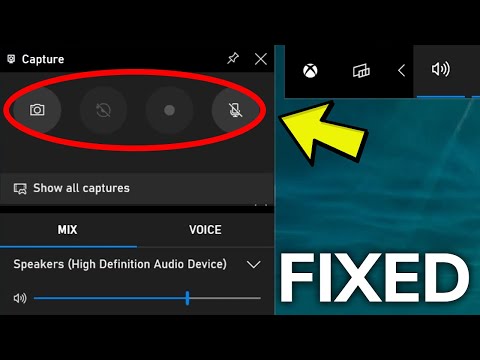
Frustrating, isn’t it? You’re geared up for an epic gaming session, ready to capture your most glorious moments, only to find that the Xbox Game Bar screen recording is stubbornly refusing to cooperate on your Windows 10 machine. The culprit could be anything from a simple settings tweak to a more complex driver issue.
In short, several reasons could be behind the problem:
- Disabled Microphone/Recording Device: Windows needs permission to access your microphone for recording.
- Disabled Application: The Xbox Game Bar might be disabled entirely in Windows settings.
- Outdated Graphics Driver: Compatibility issues with the graphics driver can hinder screen recording functionality.
- Too Many Programs Running: Excessive background processes can overwhelm the system and interfere with the Game Bar.
- Game Bar Settings: Incorrect configuration within the Game Bar itself.
- Full-Screen Recording Mode: Compatibility issues with certain full-screen applications.
- Registry Settings: Corrupted or incorrect registry entries.
- Altered Shortcut Key: If the default shortcut (Windows key + G) has been changed or is not working.
- Storage Issues: If your hard drive is almost full, the recording may fail.
- Specific Game Restrictions: Certain games actively prevent screen recording due to DRM or other protection measures.
- Administrator Privileges: The app may need administrator privileges to record certain games or applications.
Let’s dive deeper into these potential problems and explore the solutions to get your screen recording back on track.
Diagnosing the Problem: A Step-by-Step Approach
Before you start tearing your hair out, let’s go through a systematic troubleshooting process.
1. Check Microphone and Recording Device Settings
The first and often overlooked step is to ensure your microphone or recording device is enabled and configured correctly:
- Right-click the speaker/volume icon in the Windows taskbar.
- Select “Open Sound settings“.
- Under the “Input” section, ensure your desired microphone is selected from the dropdown menu.
- Click on “Device properties”.
- Verify that the “Disable” box is unchecked and the volume slider is at an appropriate level.
- In the “Related settings” section, select “Sound Control Panel”.
- Go to the “Recording” tab.
- If your microphone is listed but disabled, right-click it and select “Enable“.
2. Verify Xbox Game Bar is Enabled
Ensure the Xbox Game Bar itself is enabled within Windows settings:
- Press the Windows key + I to open the Settings app.
- Click on “Gaming“.
- In the “Xbox Game Bar” section, make sure the toggle switch is set to “On“.
- Also, check that the shortcut (usually Windows key + G) is correctly assigned. If not, change it.
3. Update Your Graphics Drivers
Outdated graphics drivers are a common culprit behind screen recording issues. Here’s how to update them:
- Press the Windows key + X and select “Device Manager“.
- Expand “Display adapters“.
- Right-click on your graphics card and select “Update driver“.
- Choose “Search automatically for drivers“. Windows will attempt to find and install the latest drivers.
- Alternatively, you can manually download the latest drivers from the manufacturer’s website (Nvidia, AMD, or Intel).
4. Close Unnecessary Background Programs
Too many applications running simultaneously can strain your system’s resources and interfere with screen recording. Close any programs you’re not actively using.
- Press Ctrl + Shift + Esc to open Task Manager.
- In the “Processes” tab, identify any resource-intensive programs.
- Select them and click “End task“.
5. Review Xbox Game Bar Settings
Dive into the Game Bar settings themselves:
- Press the Windows key + G to open the Xbox Game Bar.
- Click on the Settings icon (the gear).
- In the “Capturing” section:
- Ensure “Record in the background while I’m playing a game” is enabled.
- Adjust the recording quality settings as needed (higher quality requires more storage space).
- Check the “Record audio when I record a game” option and select your desired audio input.
6. Check for Game Compatibility
Some games restrict screen recording functionality for various reasons. If you’re encountering issues with a specific game, research whether it’s known to have compatibility problems with the Xbox Game Bar.
7. Reset the Xbox Game Bar App
Sometimes, resetting the app can resolve underlying issues:
- Press the Windows Key + I to open the Settings app.
- Click on “Apps“.
- Find “Xbox Game Bar” in the list of installed apps.
- Click on it and select “Advanced options“.
- Click on “Reset“.
8. Modify Registry Settings (Advanced Users Only!)
Warning: Incorrectly modifying the registry can cause serious system problems. Only proceed if you’re comfortable with registry editing.
- Press the Windows key + R, type “regedit“, and press Enter.
- Navigate to
HKEY_CURRENT_USERSystemGameConfigStore. - Find the
GameDVR_EnabledDWORD. If it’s set to 0, double-click it and change the value to 1. - Navigate to
HKEY_LOCAL_MACHINESOFTWAREPoliciesMicrosoftWindows. - Check if there’s a key called
GameDVR. If so, ensure theAllowGameDVRDWORD is set to 1. If theGameDVRkey doesn’t exist, right-click on theWindowskey, select “New” -> “Key”, and name itGameDVR. Then, right-click inside theGameDVRkey, select “New” -> “DWORD (32-bit) Value”, name itAllowGameDVR, and set its value to 1. - Restart your computer.
9. Check Storage Space
Ensure that you have enough free space on your hard drive for the screen recordings. Low disk space can prevent recordings from saving correctly.
10. Run as Administrator
Try running the Xbox Game Bar (or the game you’re trying to record) with administrator privileges. This can sometimes bypass permission issues. Right-click on the application’s executable file and select “Run as administrator”.
FAQs: Xbox Screen Recording on Windows 10
Here are some frequently asked questions to further clarify common issues and provide helpful tips:
-
Why is my screen recording black in Windows 10? A black screen during recording often indicates a problem with the video encoder or GPU. Ensure your graphics drivers are up to date, close unnecessary background programs, and try switching between windowed and full-screen modes. Sometimes, the issue arises when the screen recorder doesn’t work on the same GPU as the recording app.
-
How do I enable Xbox recording on my computer? Press the Windows key + G to open the Xbox Game Bar. Go to the Settings and ensure the recording feature is enabled. You may need to grant the app permission to access your microphone and camera.
-
Where do Xbox screen recordings go on PC? By default, screen recordings are saved in the VideosCaptures folder within your user profile. You can change this location in the Windows Settings app under Gaming > Captures.
-
Is there a limit to how long I can screen record on Windows 10 with the Xbox Game Bar? There is no hard limit, but the recording will stop if you run out of storage space. Also, very long recordings can sometimes become corrupted, so it’s a good practice to break them into smaller segments.
-
How do I record my screen on Windows 10 without the Xbox Game Bar? Windows 10 offers an alternative using the Steps Recorder. Additionally, third-party screen recording software like OBS Studio, ShareX, or Camtasia can be used. These often provide more advanced features and customization options.
-
Why won’t my Xbox recorder work even after trying all the fixes? Some games have built-in protections that prevent screen recording. Check if this applies to the specific game you’re trying to record. Also, ensure Windows is fully updated.
-
Can I record my entire screen or only the game window? The Xbox Game Bar primarily focuses on recording the active game window. Some third-party solutions will allow you to select a specific window or the entire screen.
-
How do I record audio with my screen recording? Make sure your microphone is enabled in the Sound settings and that the “Record audio when I record a game” option is checked in the Xbox Game Bar settings.
-
What video and audio formats does the Xbox Game Bar use? The Xbox Game Bar typically records in MP4 format for video and AAC format for audio.
-
How much storage space does a 2-hour screen recording take up? It depends on the recording quality settings. A 2-hour 1080p recording with a moderate bitrate could take up approximately 6-7 GB of storage space.
-
Why is Windows Alt + R not working to start recording? This shortcut might be overridden by another application. Check your keyboard shortcuts and try reassigning the recording shortcut in the Xbox Game Bar settings. Also, ensure that the Xbox Game Bar itself is enabled and running in the background.
-
Can I fix a screen recording with no sound? If you have the original recording file, you might be able to extract the audio stream using video editing software and then adjust the volume or apply noise reduction. However, if the audio wasn’t recorded in the first place, there’s nothing to fix.
-
Does screen recording record system sounds as well as microphone audio? Yes, it does. You can adjust the audio input settings to choose which audio sources to record (microphone only, system sounds only, or both).
-
What is the maximum time for screen recording on Windows 10 using the Xbox Game Bar? There isn’t a fixed time limit, but practical limitations exist based on your hard drive capacity and system performance. It’s advisable to test with shorter recordings first.
-
My screen recording is choppy and laggy. How can I fix it? Lower the recording quality settings, close unnecessary background programs, and ensure your graphics drivers are up to date. Consider upgrading your hardware (CPU, GPU, or RAM) for better performance. Also, defragmenting your hard drive might help.
By systematically working through these troubleshooting steps and understanding the common issues, you should be able to get your Xbox Game Bar screen recording working smoothly on Windows 10. If the issue persists, consider exploring other screen recording software options, such as the ones recommended by the Games Learning Society, for more robust and reliable performance. This can be of great benefit when researching video games and how they may be applied for educational practices. For more information on how games are used for learning and teaching, you can visit GamesLearningSociety.org.