Why is OneDrive Sync Taking So Long? Unraveling the Mystery
Fast answer first. Then use the tabs or video for more detail.
- Watch the video explanation below for a faster overview.
- Game mechanics may change with updates or patches.
- Use this block to get the short answer without scrolling the whole page.
- Read the FAQ section if the article has one.
- Use the table of contents to jump straight to the detailed section you need.
- Watch the video first, then skim the article for specifics.
OneDrive, Microsoft’s cloud storage solution, is a fantastic tool for keeping your files backed up and accessible across multiple devices. But what happens when that smooth syncing process grinds to a halt? What causes the dreaded “Processing changes” message to linger for what seems like an eternity? The short answer is that a multitude of factors can contribute to slow OneDrive sync speeds. These include your internet connection speed, the size and number of files you’re syncing, resource constraints on your computer, and even issues with the OneDrive application itself. Understanding these potential bottlenecks is the first step towards resolving them and getting your files synced quickly and efficiently.
Delving Deeper: The Culprits Behind Slow Sync
Here’s a more detailed look at the common reasons behind slow OneDrive syncing:
- Internet Connection Issues: A slow or unreliable internet connection is the most frequent culprit. Cloud syncing heavily relies on a stable and fast internet connection to upload and download files.
- Large Files and File Volume: Syncing large individual files (e.g., videos, large documents) or a large number of files simultaneously will naturally take longer. Each file needs to be uploaded, processed, and then downloaded to other synced devices.
- Computer Resource Constraints: OneDrive uses system resources (CPU, memory, disk I/O) to perform syncing tasks. If your computer is already struggling with other demanding applications, OneDrive syncing can be significantly slowed down.
- OneDrive Application Issues: Sometimes, the problem lies within the OneDrive application itself. This could be due to corrupted cache files, software bugs, or outdated versions of the application.
- Files Stuck in the Queue: Certain files might be stuck in the sync queue due to errors or conflicts. This can prevent other files from syncing and create a backlog.
- Files Open on Another Device: If a file is open on another device that’s also syncing with OneDrive, it might create a temporary lock and delay syncing until the file is closed.
- Network Congestion: If many devices share the same network, especially during peak hours, it can lead to network congestion and slower syncing speeds.
- OneDrive Settings: Incorrectly configured OneDrive settings, such as limiting upload or download speeds, can unintentionally slow down the syncing process.
- Conflicts with Other Software: Certain security software, such as firewalls or antivirus programs, might interfere with OneDrive’s syncing process.
Troubleshooting Techniques: Speeding Up Your Sync
Now that you know the potential causes, let’s explore some troubleshooting steps to improve your OneDrive syncing speeds:
- Check Your Internet Connection: Run a speed test to ensure you have a sufficient and stable internet connection. Consider switching to a wired connection if possible for better stability.
- Close Unnecessary Applications: Free up computer resources by closing any applications you’re not actively using.
- Prioritize Important Files: If you’re syncing a large number of files, consider pausing the sync and syncing only the most crucial files first.
- Restart OneDrive: Sometimes, simply restarting the OneDrive application can resolve minor glitches and improve syncing speed.
- Update OneDrive: Ensure you’re running the latest version of OneDrive. Updates often include bug fixes and performance improvements.
- Reset OneDrive: If problems persist, try resetting OneDrive. This will disconnect and reconnect your OneDrive account and perform a full sync. Remember, resetting OneDrive performs a full sync.
- Check OneDrive Settings: Verify that you haven’t accidentally limited upload or download speeds in the OneDrive settings.
- Choose Folders to Sync Wisely: Only sync folders that you actively need on your computer. This reduces the amount of data that needs to be synced.
- Check for Conflicting Software: Temporarily disable your firewall or antivirus program to see if it’s interfering with OneDrive syncing. If it is, you might need to adjust its settings.
- Address Files Stuck in Sync: Identify and resolve any files stuck in the sync queue. You might need to close, rename, or move these files.
- Schedule Syncs Strategically: Consider scheduling large sync operations during off-peak hours when network congestion is lower.
- Move TMP Files Outside OneDrive: Move any .TMP files outside of your OneDrive folders to prevent sync issues related to temporary files.
Frequently Asked Questions (FAQs) About OneDrive Sync
Here are some frequently asked questions to further assist you with OneDrive syncing:
Why does OneDrive say “Processing changes” for a long time?
This often indicates that OneDrive is dealing with a large file, a backlog of changes, or an open file that’s being edited. Check the OneDrive icon in the taskbar to see the files currently being synced.
How often does OneDrive automatically sync?
By default, OneDrive aims to sync automatically every 10 minutes when you’re connected to the internet. However, this can vary depending on network conditions and file activity.
How do I force OneDrive to sync immediately?
While there’s no “force sync” button, restarting OneDrive or making a small change to a file within a synced folder can often trigger an immediate sync.
What happens if I don’t use OneDrive?
Your files stored only on OneDrive will not be accessible from your computer’s file explorer. However, you can still access them through the OneDrive website (OneDrive.com). Also, you won’t lose your data, but you’ll miss out on automatic backups and cross-device accessibility.
How do I delete files from OneDrive but not my computer?
Move the files out of the OneDrive folder on your computer and into a folder that’s not synced with OneDrive. This will remove them from your local OneDrive folder and cloud storage.
How do I know if OneDrive is actually syncing?
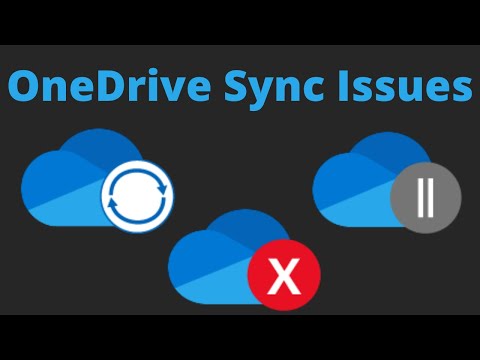
Look for the OneDrive icon in your system tray (bottom right corner on Windows). It shows different icons to indicate sync status: a blue cloud (syncing in progress), a green checkmark (files are up to date), or a red X (sync error).
Can I access OneDrive files without syncing them to my computer?
Yes. You can access all your files stored on OneDrive through the OneDrive website without syncing them to your computer. You can also choose to only sync certain folders to save space.
Why isn’t OneDrive syncing a specific folder?
Go to OneDrive settings, click the “Account” tab, and select “Choose folders.” Make sure the folder you want to sync is checked. If it’s unchecked, select it and click “OK.”
Is OneDrive useful for users with limited storage space on their devices?
Absolutely! OneDrive allows users to keep most of their data stored only in the cloud and only allows specific files to be downloaded to their device of use. It is a beneficial feature for users with limited storage space on their devices.
How do I stop OneDrive from syncing a specific folder?
Go to OneDrive settings, click the “Account” tab, and select “Choose folders.” Uncheck the box next to the folder you want to stop syncing and click “OK.”
Will deleting files from my computer also delete them from OneDrive?
Yes, if the file is located within your OneDrive folder, deleting it from your computer will also delete it from OneDrive, and vice versa. OneDrive mirrors the files in the OneDrive folder on your PC with the OneDrive storage on the Microsoft cloud. To avoid this, remove the file from the OneDrive folder before deleting it on your computer.
Does OneDrive sync in real time?
OneDrive uses Windows Push Notification Services (WNS) to sync files relatively quickly after a change, making it close to real-time.
Is it necessary to back up OneDrive data?
While OneDrive provides a form of backup, it’s still a good practice to have a secondary backup solution for your important files in case of account issues or data corruption.
How can I optimize OneDrive sync speed for large files?
Make sure to increase your upload/download rates as needed. Open OneDrive settings (select the OneDrive cloud icon in your notification area, and then select the OneDrive Help and Settings icon then Settings.) Go to the Sync and back up tab, and expand Advanced settings. Adjust the upload and download rates as required.
Where can I find more information on how to optimize learning through games and interactive experiences?
If you’re interested in exploring the intersection of games and learning, check out the Games Learning Society at https://www.gameslearningsociety.org/. GamesLearningSociety.org promotes research and collaboration in the field of game-based learning.
By understanding the reasons behind slow OneDrive sync speeds and implementing the troubleshooting steps outlined above, you can dramatically improve your syncing experience and keep your files readily accessible whenever and wherever you need them.