Why is PlayStation Not Sending Email? Troubleshooting Tips and Solutions
Fast answer first. Then use the tabs or video for more detail.
- Watch the video explanation below for a faster overview.
- Game mechanics may change with updates or patches.
- Use this block to get the short answer without scrolling the whole page.
- Read the FAQ section if the article has one.
- Use the table of contents to jump straight to the detailed section you need.
- Watch the video first, then skim the article for specifics.
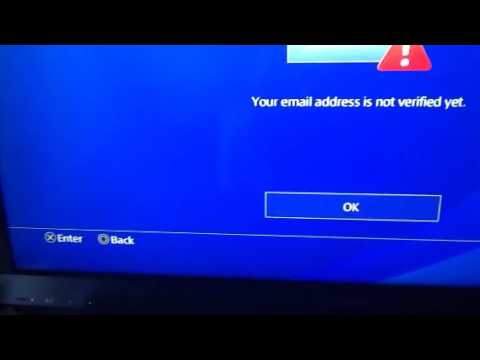
PlayStation not sending emails can be a frustrating issue, especially when you’re trying to reset your password, verify your account, or receive important updates. The reasons behind this can be varied, but most commonly it boils down to spam filters, incorrect email addresses, server issues, or account inactivity. To pinpoint the cause, systematically check these potential problem areas and apply the corresponding solutions.
Understanding the Issue: Why Aren’t You Receiving Emails?
Several factors can prevent PlayStation from sending you emails. Let’s break down the most common culprits:
- Spam Filters: Email providers often have aggressive spam filters. PlayStation emails might be incorrectly flagged as spam and sent to your spam or junk folder.
- Incorrect Email Address: A simple typo when creating your PlayStation Network (PSN) account can prevent emails from reaching you.
- Server Issues: On rare occasions, PlayStation’s email servers might be experiencing temporary outages, delaying or preventing email delivery.
- Account Inactivity: Sony may close accounts that have been inactive for an extended period (usually 24 months or more). While they don’t typically delete the usernames tied to those accounts, email functionality might be affected.
- Email Blocking: You may have inadvertently blocked PlayStation’s email address or domain.
- ISP Issues: In some cases, the problem lies with your internet service provider (ISP), which might be blocking or filtering emails from PlayStation.
- Exceeded Email Limits: Some email providers have daily or hourly limits on the number of emails you can receive. If you’ve exceeded these limits, PlayStation’s emails might be blocked temporarily.
Troubleshooting Steps to Get Your Emails
Here’s a step-by-step guide to troubleshoot and resolve the issue:
- Check Your Spam/Junk Folder: This is the first and easiest step. Look for any emails from PlayStation in your spam or junk folder. If you find one, mark it as “Not Spam” to ensure future emails reach your inbox.
- Verify Your Email Address: Log into your PlayStation account through the PlayStation website or on your console. Go to Account Management > Account Information > Sign-in ID (Email Address). Carefully check the email address for any typos or errors. Correct it if necessary.
- Try a Different Email Address: If possible, try using a different email address to reset your password or verify your account. This can help determine if the problem is with your email provider. To change your email address, go to Settings > Account Management > Account Information > Sign-in ID and follow the prompts.
- Resend the Verification Email: On the PlayStation website or your console, look for the option to resend the verification email. Sometimes, the initial email might get lost in transit.
- Wait 24 Hours: PlayStation’s support documentation often recommends waiting up to 24 hours for the email to arrive. Server delays can sometimes occur.
- Contact PlayStation Support: If none of the above steps work, contact PlayStation support directly through their website or phone line. They can investigate your account and identify any specific issues preventing email delivery. Their phone number for Consumer Support is 877-971-7669.
- Check for Account Suspension: While less common, your account may be suspended. If you’ve violated PlayStation’s terms of service, your account might be suspended, preventing you from receiving emails. Contact PlayStation support to inquire about your account status.
- Check Email Blocking Lists: Ensure you haven’t accidentally blocked PlayStation’s email address or domain in your email settings. Check your blocked senders list and remove PlayStation if it’s there.
- Consider Account Activity: While Sony rarely deletes accounts outright, extremely inactive accounts may experience issues. Try logging in and using your account to see if that triggers email delivery.
- Check your internet service provider: Contact your ISP to ensure they are not blocking email communication from Playstation or Sony.
Preventing Future Email Issues
To minimize the chances of encountering this problem again:
- Double-check your email address when creating or updating your PlayStation account.
- Add PlayStation to your safe senders list in your email settings.
- Regularly log in to your PlayStation account to keep it active.
- Monitor your spam/junk folder periodically to ensure important emails aren’t being missed.
- Keep your contact information updated in your PlayStation account settings.
Understanding Gaming and Learning
As we troubleshoot these technical issues, it’s important to remember the broader context of gaming and its impact. Organizations like the Games Learning Society (GamesLearningSociety.org) are dedicated to exploring the educational potential of games. They research how games can be used to enhance learning, problem-solving skills, and critical thinking. Understanding the multifaceted role of gaming in our lives – from entertainment to education – provides a richer perspective when dealing with technical challenges on platforms like PlayStation.
Frequently Asked Questions (FAQs)
Here are 15 frequently asked questions related to PlayStation email issues:
1. Why am I not getting my password reset email from PlayStation?
Check your spam folder first. Ensure the email address associated with your PSN account is correct. If still not receiving it, try a different email address to see if the problem persists.
2. How long does it take for PSN to send a password reset email?
Typically, you should receive the email within a few minutes. However, allow up to 24 hours in case of server delays.
3. What if my PSN signing in isn’t working?
Double-check your username and password for typos. If you’ve forgotten your password, use the “Trouble Signing In?” option on the PSN sign-in page to reset it.
4. How can I recover my PlayStation support account if I don’t know my password?
Go to the PSN sign-in page and click on “Trouble Signing In?”. Select “I don’t know my password” and follow the on-screen prompts to reset your password.
5. What should I do if I am not receiving the password reset email?
Ensure you’re checking the correct email inbox, including your spam or junk folders. Try resending the email and verify that your email address is correctly associated with your account.
6. How do I contact PlayStation support for help with email issues?
You can contact PlayStation support through their website or by calling them at 877-971-7669. Look for the “Ask a PlayStation Expert” option on their website.
7. Do PSN accounts get deleted due to inactivity?
Sony may close accounts inactive for 24 months, but usernames usually remain locked and unavailable for reuse.
8. How can I recover my PSN account without a phone number linked for two-step verification?
If you have backup codes, use those. Otherwise, you’ll need to verify your identity through PlayStation support to recover your account.
9. How do I recover my PSN account without two-step verification if I don’t have backup codes?
You’ll need to contact PlayStation support and verify your identity through alternative methods.
10. How do I change my PSN email address?
Go to Settings > Account Management > Account Information > Sign-in ID and follow the instructions. You’ll receive a verification email at the new address.
11. Why am I not getting my Sony verification email?
Check your spam folder. Try resending the link or wait 24 hours. If you still don’t receive it, contact PlayStation support.
12. Does PlayStation respond to emails if I have an issue?
Yes, email is a legitimate way to receive an official response from PlayStation, especially for complex issues requiring documentation.
13. What if I receive an unexpected two-step authentication request?
Immediately deny the request and report it as fraudulent. This protects your account from unauthorized access.
14. Can I delete my PSN account and create a new one with the same email?
Yes, but you’ll lose everything tied to your old account. To use the same email, change the email on the old account first.
15. How do I change my phone number for two-step verification on PlayStation?
Go to your Profile page. Scroll down to Login & Security. Select “Change” under 2-Step Verification. You will need to re-authenticate, change your mobile phone number, and verify the new number with the code you receive via SMS.
By systematically addressing these potential issues and utilizing the troubleshooting steps outlined above, you can increase your chances of resolving PlayStation email problems and regaining access to your account and its features.