Why is Steam Using 100% of My Disk?
Fast answer first. Then use the tabs or video for more detail.
- Watch the video explanation below for a faster overview.
- Game mechanics may change with updates or patches.
- Use this block to get the short answer without scrolling the whole page.
- Read the FAQ section if the article has one.
- Use the table of contents to jump straight to the detailed section you need.
- Watch the video first, then skim the article for specifics.
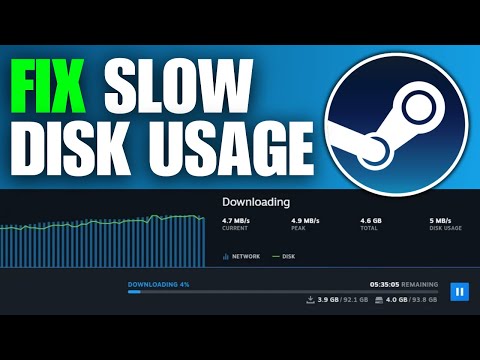
Experiencing 100% disk usage while using Steam is a frustratingly common issue that can bring your gaming experience to a screeching halt. The core reason boils down to this: your hard drive is struggling to keep up with the demands of downloading, installing, and running games. Steam’s process of downloading and installing “on the fly,” where files are simultaneously written, unpacked, processed, and installed, puts a significant strain on your disk. If your disk’s read/write speeds can’t match the data flow from your internet connection, it creates a bottleneck, resulting in that dreaded 100% usage.
Think of it like a highway with too many cars trying to squeeze through a narrow tunnel. Your internet connection is the highway, delivering data at a certain speed. Your hard drive is the tunnel, processing that data. If the highway is pouring cars (data) faster than the tunnel (hard drive) can process them, traffic (disk usage) jams up at 100%.
Understanding the Culprits
While the core issue is often disk speed, several factors can exacerbate the problem:
- Fragmented Hard Drive: Over time, files on your hard drive become scattered. The disk has to work harder to piece them together, slowing down performance and increasing usage.
- Slow Hard Drive: Older, mechanical hard drives (HDDs) are inherently slower than Solid State Drives (SSDs). If you’re still using an HDD, especially for your operating system and Steam library, this is likely the main culprit.
- Insufficient RAM: If your system doesn’t have enough RAM (Random Access Memory), it relies more heavily on the hard drive as a “swap file,” effectively using the disk as temporary memory. This significantly increases disk usage.
- Background Processes: Other programs running in the background, like antivirus software, Windows updates, or even web browsers, can compete for disk resources.
- Corrupted System Files: Damaged or corrupted system files can cause Windows to constantly try to repair them, leading to high disk usage.
- Outdated or Faulty Drivers: Incorrect or outdated disk drivers can cause performance problems.
- Malware Infection: Viruses and malware can consume system resources, including disk usage, without your knowledge.
- Steam Cache Issues: A bloated or corrupted Steam cache can cause problems with downloads and installations.
- Windows Search Indexing: The Windows Search Indexer can occasionally hog disk resources while building its search index.
- Superfetch/SysMain Service: This service is meant to improve performance by preloading frequently used applications into memory. However, sometimes it can cause high disk usage, especially on older systems.
Solutions to Tame the Disk Hog
Now that we’ve identified the potential culprits, let’s explore some solutions:
-
Upgrade to an SSD: This is the single most effective solution. SSDs offer significantly faster read/write speeds compared to HDDs, drastically reducing the bottleneck. Install your operating system and Steam library on the SSD for optimal performance.
-
Run Disk Defragmenter (HDD Only): If you’re still using an HDD, defragmenting your disk can help consolidate fragmented files and improve performance. Note: Do NOT defragment an SSD.
-
Increase RAM: Adding more RAM reduces the need for Windows to use the hard drive as a swap file, freeing up disk resources. 8GB is generally the minimum for modern gaming, while 16GB or more is recommended.
-
Close Unnecessary Background Programs: Use Task Manager (Ctrl+Shift+Esc) to identify and close programs that are consuming excessive disk resources.
-
Check for Malware: Run a thorough scan with your antivirus software to rule out any malware infections.
-
Update Drivers: Ensure your disk drivers are up to date. You can typically find the latest drivers on the manufacturer’s website (e.g., Intel, AMD, Samsung).
-
Clear Steam Download Cache: In Steam, go to Steam > Settings > Downloads > Clear Download Cache. This can resolve issues with corrupted cache files.
-
Disable Windows Search Indexing (Temporarily): If you suspect the Search Indexer is the problem, you can temporarily disable it. Open Services (search for “services” in the Windows search bar), find “Windows Search,” right-click, and select “Stop.” If this improves performance, you can consider rebuilding the index (search for “indexing options” in the Windows search bar).
-
Disable Superfetch/SysMain Service (Use with Caution): Similar to Windows Search, you can try disabling Superfetch/SysMain to see if it improves performance. Locate “SysMain” in the Services window, right-click, and select “Stop.” Note: Disabling this service can sometimes negatively impact performance, so monitor your system closely after disabling it.
-
Check Disk for Errors: Run the “chkdsk” utility to scan your hard drive for errors. Open Command Prompt as administrator and type “chkdsk /f /r” (without quotes). You’ll likely be prompted to schedule the check to run on the next system restart.
-
Disable Antivirus Program (Temporarily): Temporarily disabling your antivirus software can help determine if it’s causing the high disk usage. If it is, consider switching to a different antivirus program.
-
Adjust Virtual Memory: In some cases, manually adjusting the virtual memory settings can improve performance. Search for “Adjust the appearance and performance of Windows” then go to the Advanced tab to find the “Virtual memory” section and click “Change.” Uncheck the box that says “Automatically manage paging file size for all drives” and follow the on-screen instructions.
-
Update Windows 10/11: Make sure your Windows operating system is updated.
-
Disable Windows Defender (Use with Caution): Temporarily disabling Windows Defender can help determine if it’s causing the high disk usage.
-
Repair Hard Disk Issues: If the hard drive is failing, it needs to be replaced.
Finding the Root Cause is Key
The most important step is to identify the root cause of the 100% disk usage. Use Task Manager to monitor which processes are consuming the most disk resources and then focus on addressing those specific issues. With some troubleshooting and optimization, you can usually tame the disk hog and get back to enjoying your games. Additionally, consider exploring resources from educational organizations like the Games Learning Society at GamesLearningSociety.org for insights into gaming technology and its impact on learning.
Frequently Asked Questions (FAQs)
1. Will an SSD always fix 100% disk usage on Steam?
While an SSD dramatically improves performance, it’s not a guaranteed fix for all cases of 100% disk usage. If the issue is caused by other factors, such as malware, driver issues, or software conflicts, the problem may persist even with an SSD. However, an SSD will significantly reduce the bottleneck caused by slow disk speeds.
2. Is it normal for my disk to hit 100% when downloading a game on Steam?
It’s not uncommon for disk usage to spike during downloads, especially if you have a fast internet connection and a relatively slow hard drive. However, if the disk usage consistently stays at 100% for extended periods and causes system slowdowns, it indicates a problem.
3. Why does my disk usage drop to 0% on Steam when I’m not doing anything?
Steam only uses the disk when it’s actively reading or writing data. When you’re not downloading, installing, or playing a game, the disk usage will naturally drop to 0% or very low levels. This is normal behavior.
4. Can low RAM cause 100% disk usage on Steam?
Yes. When you have insufficient RAM, your system uses the hard drive as a swap file to compensate. This significantly increases disk usage and slows down performance, especially when running demanding games.
5. How do I check my disk for errors?
You can use the “chkdsk” utility. Open Command Prompt as administrator and type “chkdsk /f /r” (without quotes). You’ll likely be prompted to schedule the check to run on the next system restart.
6. Is it safe to disable Superfetch/SysMain?
Disabling Superfetch/SysMain can sometimes improve performance on older systems with HDDs, but it can also negatively impact performance on modern systems with SSDs. It’s best to test the impact on your system and re-enable it if you experience any problems.
7. How do I clear the Steam download cache?
In Steam, go to Steam > Settings > Downloads > Clear Download Cache.
8. Will deleting Steam cache affect my installed games?
No, clearing the Steam download cache will not affect your installed games. It only removes temporary files related to downloads. You will need to log back into Steam after clearing the cache.
9. Is it okay to defragment an SSD?
No! Do NOT defragment an SSD. Defragmenting is designed for HDDs and can actually shorten the lifespan of an SSD. SSDs use a different data storage method that doesn’t require defragmentation.
10. Can a virus cause 100% disk usage on Steam?
Yes, malware can consume significant system resources, including disk usage, leading to performance problems.
11. How do I find out which programs are using the most disk space?
Use Task Manager (Ctrl+Shift+Esc). Click on the “Disk” column to sort processes by disk usage.
12. What if I’ve tried everything and my disk is still at 100%?
If you’ve tried all the common solutions and your disk usage is still consistently high, it could indicate a more serious problem, such as a failing hard drive or a corrupted operating system. Consider backing up your data and reinstalling Windows.
13. Does the size of the game I’m downloading affect disk usage?
Yes. Larger games require more data to be written to the disk, which can lead to higher disk usage during the download and installation process.
14. Can using an external hard drive for Steam games help with 100% disk usage?
If your primary hard drive is struggling with 100% usage, moving your Steam library to a faster external drive (especially an external SSD) can improve performance. However, keep in mind that the USB connection can also introduce a bottleneck.
15. How often should I clear my Steam download cache?
There’s no need to clear your Steam download cache regularly unless you’re experiencing issues with downloads or game installations. Clearing it periodically as part of general maintenance is fine.