Why is My Xbox Blurry on TV? A Comprehensive Troubleshooting Guide
Fast answer first. Then use the tabs or video for more detail.
- Watch the video explanation below for a faster overview.
- Game mechanics may change with updates or patches.
- Use this block to get the short answer without scrolling the whole page.
- Read the FAQ section if the article has one.
- Use the table of contents to jump straight to the detailed section you need.
- Watch the video first, then skim the article for specifics.
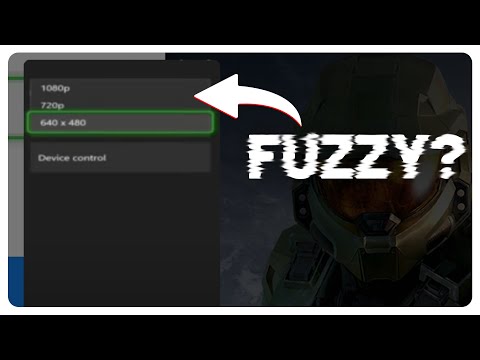
A blurry image on your TV while gaming on your Xbox can be incredibly frustrating. It detracts from the immersion and makes it difficult to appreciate the visual fidelity of modern games. The culprit could range from simple settings to more complex hardware issues. Essentially, a blurry Xbox screen arises from a mismatch between the Xbox’s output resolution, your TV’s capabilities, or a problem in the connection between the two. This can be compounded by incorrect settings on either the Xbox or the TV, or even faulty hardware. Understanding these potential causes is the first step to restoring a crisp, clear picture.
Understanding the Root Causes of a Blurry Xbox Image
Several factors can contribute to a blurry Xbox experience on your TV. Here’s a breakdown of the most common causes:
- Resolution Mismatch: This is perhaps the most frequent offender. If your Xbox is set to output a resolution that your TV doesn’t support or isn’t optimized for, the image can appear blurry or distorted. For example, trying to display a 4K signal on a 1080p TV will result in a downscaled image that might not look its best. Similarly, trying to force a 1080p signal on a 4K TV could lead to upscaling issues, causing blurriness.
- Incorrect Scaling Settings: TVs often have scaling options like “Zoom,” “Stretch,” or “Aspect Ratio” settings. These settings can distort the image, making it appear blurry or stretched. Make sure your TV is set to its native resolution and that the scaling is set to “1:1,” “Just Scan,” or something similar that avoids any unnecessary stretching or zooming.
- HDMI Cable Issues: The HDMI cable is the lifeline between your Xbox and your TV. A damaged, low-quality, or improperly connected HDMI cable can significantly degrade the video signal, resulting in a blurry or distorted image. Ensure you’re using a high-quality HDMI cable (preferably one that supports HDMI 2.0 or 2.1 for 4K and high refresh rates) and that it’s securely connected to both the Xbox and the TV. Consider using the HDMI cable that came with your Xbox, especially if you are trying to achieve 4K@120Hz.
- TV Picture Settings: Many TVs have various picture settings, such as sharpness, contrast, brightness, and noise reduction, that can impact image quality. Experimenting with these settings can sometimes improve clarity, but incorrect adjustments can also worsen blurriness. Start with a “standard” or “movie” picture mode and then fine-tune individual settings from there.
- Overscan: As the included article mentions, Overscan is a setting on some TVs that cuts off the edges of the picture. This can be useful for older analog signals but is detrimental to digital signals like those from your Xbox. Make sure Overscan is turned off on your TV. Look for options like “Just Scan” or “Screen Fit”.
- Xbox Display Settings: The Xbox itself has display settings that can affect image quality. These settings include resolution, refresh rate, color depth, and color space. Ensure these settings are properly configured to match your TV’s capabilities.
- Hardware Issues: In some cases, a blurry image can be caused by hardware problems with either the Xbox or the TV. For example, a failing HDMI port on either device can degrade the video signal. Overheating of the console can cause performance issues that lead to blurry graphics.
Troubleshooting Steps to Fix a Blurry Xbox Screen
Here’s a systematic approach to troubleshooting and resolving a blurry Xbox screen:
- Verify HDMI Connection: Double-check that the HDMI cable is securely connected to both the Xbox and the TV. Try using a different HDMI port on your TV. Ensure you’re using a high-quality HDMI cable, preferably the one that came with your Xbox.
- Check Xbox Resolution Settings: Press the Xbox button to open the guide. Go to Profile & system > Settings > General > TV & display options. Under Display, select the appropriate screen resolution for your TV. If you have a 4K TV, set the resolution to 4K UHD. Set the refresh rate to 60 Hz or 120 Hz depending on your TV’s capabilities and the HDMI standard it supports.
- Adjust TV Picture Settings: Access your TV’s picture settings menu. Select a picture mode like “Standard” or “Movie.” Disable any aggressive noise reduction or sharpening filters, as these can sometimes worsen the blurriness. Adjust the sharpness, contrast, and brightness to your liking.
- Disable Overscan: Look for an Overscan setting in your TV’s picture settings menu. It might be labeled as “Just Scan,” “Screen Fit,” or something similar. Disable Overscan to ensure that the entire image is displayed without any cropping.
- Check Xbox Display Settings: In the TV & display options menu on your Xbox, check the color depth and color space settings. Experiment with different color depth settings (e.g., 8-bit, 10-bit, 12-bit) to see if it improves the image quality. Try both the Standard (sRGB) and PC RGB color space settings.
- Power Cycle Your Devices: Turn off both your Xbox and your TV completely. Unplug them from the power outlet. Wait for a minute or two. Plug them back in and turn them on. This can sometimes resolve temporary glitches that might be causing the blurriness.
- Test with a Different Game or App: If the blurriness only occurs in certain games or apps, the problem might be with those specific programs. Try playing a different game or using a different app to see if the issue persists.
- Test with a Different TV: If possible, connect your Xbox to a different TV to see if the blurriness is still present. This can help you determine whether the problem is with the Xbox or the TV.
- Update Your Xbox and TV Firmware: Make sure that your Xbox and TV are running the latest firmware. Software updates can sometimes fix bugs or improve performance that might be causing the blurriness.
- Inspect the HDMI Port: Visually inspect the HDMI port on the back of your Xbox and your TV. Check for bent pins or other damage. If you see any damage, you may need to have the port repaired or replaced.
If you’ve tried all of these troubleshooting steps and you’re still experiencing a blurry image, it’s possible that there’s a more serious hardware problem with your Xbox or TV. In that case, you may need to contact Microsoft support or a qualified TV repair technician.
FAQs: Resolving Xbox Blur Issues on TV
1. Why does my Xbox look blurry on my new 4K TV?
A resolution mismatch or incorrect upscaling settings on the TV are common causes. Ensure your Xbox is set to 4K UHD resolution and that your TV is properly upscaling lower resolutions. Also, check your HDMI cable.
2. How do I fix a blurry Xbox One screen?
Start by checking your HDMI cable, then adjust the Xbox’s display settings (resolution, refresh rate, color depth) to match your TV’s capabilities. Also, review your TV’s picture settings, disabling unnecessary noise reduction or sharpening.
3. Is my HDMI cable causing the blurriness?
Potentially. A damaged or low-quality HDMI cable can degrade the video signal. Try a different, high-quality HDMI cable, preferably one that supports HDMI 2.0 or 2.1 for 4K and high refresh rates.
4. What TV settings should I adjust for a clearer Xbox picture?
Focus on disabling Overscan (look for “Just Scan” or similar), and experiment with picture modes like “Game” or “Movie.” Adjust sharpness conservatively and disable any aggressive noise reduction filters.
5. My Xbox screen is squished or stretched. How do I fix it?
This is likely due to incorrect aspect ratio settings on your TV or Xbox. Check your TV’s picture settings and ensure the aspect ratio is set to “16:9” or “Wide.” Also, check that your Xbox display settings are not set to stretch the screen.
6. Can a bad HDMI port cause a blurry picture?
Yes. A damaged or failing HDMI port on either your Xbox or TV can degrade the video signal, resulting in a blurry picture. Inspect the ports for damage and try using a different HDMI port.
7. My Xbox is set to 4K, but it still looks blurry. What’s wrong?
Ensure your TV actually supports 4K resolution and that the HDMI port you’re using also supports HDCP 2.2 (a copy protection standard required for 4K content). Also, ensure the HDMI cable is rated for 4k.
8. Should I use the “Game Mode” on my TV for Xbox?
Yes, “Game Mode” typically reduces input lag, which can improve responsiveness. It often disables some picture processing features, which may also slightly improve clarity.
9. What resolution should I set my Xbox to if I have a 1080p TV?
Set your Xbox resolution to 1080p. Attempting to output a higher resolution will result in downscaling, which can introduce blurriness.
10. Why is my Xbox cloud gaming blurry?
Cloud gaming relies on a stable and fast internet connection. If your connection is weak or inconsistent, the video quality may degrade, resulting in a blurry image. Also in the Xbox App, make sure the quality is set to high or very high for game streaming.
11. How do I update my Xbox firmware?
Press the Xbox button to open the guide. Go to Profile & system > Settings > System > Updates. Select Update console to check for and install any available updates.
12. Where can I find help repairing my Xbox HDMI port?
Visit your local uBreakiFix by Asurion or Asurion Tech Repair & Solutions store, and let our experts help repair your Xbox HDMI port quickly.
13. What is overscan, and how does it affect my Xbox picture?
Overscan is a feature on some TVs that crops the edges of the picture. This can cause a loss of detail and make the image appear blurry. Disable Overscan in your TV’s picture settings (look for “Just Scan” or similar).
14. Is there a way to improve the sharpness of my Xbox picture?
Carefully adjust the sharpness setting on your TV. However, avoid setting the sharpness too high, as this can introduce artifacts and make the picture look artificial. Also, check display settings on the Xbox.
15. Where can I learn more about games and learning?
The Games Learning Society is a research community dedicated to understanding games and learning. You can visit their website at https://www.gameslearningsociety.org/ or GamesLearningSociety.org to find valuable information and resources.
By systematically addressing these potential causes and following the troubleshooting steps outlined above, you should be able to restore a crisp, clear picture to your Xbox gaming experience.