Why Is My Xbox Blurry? A Comprehensive Guide to Xbox Display Issues
Fast answer first. Then use the tabs or video for more detail.
- Watch the video explanation below for a faster overview.
- Game mechanics may change with updates or patches.
- Use this block to get the short answer without scrolling the whole page.
- Read the FAQ section if the article has one.
- Use the table of contents to jump straight to the detailed section you need.
- Watch the video first, then skim the article for specifics.
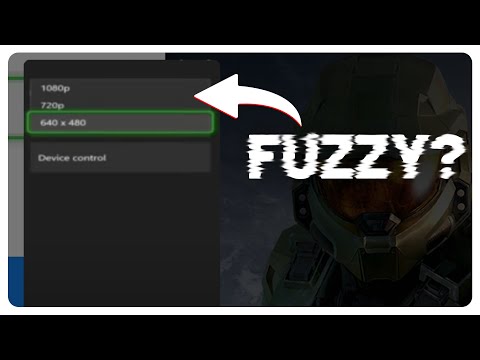
The dreaded blurry Xbox screen – a gamer’s nightmare! It’s frustrating when your favorite game looks like it’s being viewed through a fog. Several factors can contribute to a blurry picture on your Xbox, ranging from simple cable issues to more complex resolution mismatches. The good news is that most of these problems are easily fixable with a bit of troubleshooting.
Understanding the Culprits Behind a Blurry Xbox Picture
Several factors can cause a blurry image on your Xbox. Here’s a breakdown of the most common culprits:
-
Incorrect Resolution Settings: This is often the primary cause. Your Xbox might be set to a resolution that doesn’t match your TV’s capabilities, leading to upscaling or downscaling issues that result in blurriness.
-
Faulty or Incorrect HDMI Cable: A damaged or low-quality HDMI cable can struggle to transmit the high-bandwidth data required for a sharp image. Using an older HDMI cable that doesn’t support the resolution and refresh rate you’re trying to achieve is also a common issue.
-
Loose HDMI Connection: A simple yet often overlooked problem is a loose HDMI connection at either the Xbox or the TV end.
-
TV Settings: Various TV settings, like sharpness, noise reduction, and picture modes, can negatively impact clarity if not configured correctly.
-
Upscaling Issues: While upscaling can improve the appearance of lower-resolution content on a 4K TV, it’s not a perfect process and can sometimes result in a softer, less detailed image. The Xbox might be incorrectly upscaling or the TV’s upscaling capabilities might be the issue.
-
Refresh Rate Mismatch: If your Xbox’s refresh rate (e.g., 60Hz, 120Hz) doesn’t match your TV’s capabilities or settings, it can cause visual artifacts, including blurriness.
-
Outdated Console Software: Older software versions can sometimes have display-related bugs that contribute to picture quality problems.
-
Cloud Gaming Issues (Xbox Game Pass Ultimate): When streaming games through Xbox Cloud Gaming, a weak or unstable internet connection is the most frequent cause of blurriness and other visual distortions.
Troubleshooting Steps to Sharpen Your Xbox Experience
Now that we understand the potential causes, let’s delve into the solutions. Here’s a step-by-step guide to troubleshooting a blurry Xbox display:
-
Check the HDMI Cable and Connections: Begin with the basics. Ensure the HDMI cable is securely plugged into both the Xbox and the TV. Try a different HDMI port on your TV. If possible, test with a known good HDMI cable to rule out a faulty cable. High-speed HDMI cables are necessary for 4K and higher refresh rates.
-
Verify Your Resolution Settings: Navigate to Profile & system > Settings > General > TV & display options > Resolution. Ensure the resolution setting matches your TV’s native resolution. If you have a 4K TV, select 4K UHD. If you’re unsure, set the TV connection to Auto detect.
-
Adjust Refresh Rate Settings: In the same TV & display options menu, check the Refresh rate. Setting it to 60 Hz is usually a safe bet, but if your TV supports 120 Hz and the game supports it as well, you can try that. Ensure the TV’s HDMI port settings allow for 120hz refresh rate if that’s the goal.
-
Calibrate HDR Settings (if applicable): If you’re using an HDR-compatible TV, incorrect HDR settings can sometimes contribute to a washed-out or blurry picture. Under TV & display options, select Calibrate HDR for games. Follow the on-screen instructions to adjust the minimum and maximum luminance levels.
-
Adjust TV Picture Settings: Access your TV’s picture settings menu. Experiment with the following adjustments:
- Sharpness: Increase sharpness moderately to enhance details, but avoid overdoing it, as it can introduce artifacts.
- Noise Reduction: Disable or reduce noise reduction, as it can soften the image.
- Picture Mode: Try different picture modes like “Game,” “Movie,” or “Standard” to see which one looks best for your content.
- Contrast and Brightness: Adjust these settings to achieve a balanced image with good detail in both bright and dark areas.
-
Disable Overscan: Overscan is a feature on some TVs that crops the edges of the picture. Make sure that it is turned off. On some TVs, overscan is a setting called “Just Scan,” or “Dot-by-Dot”.
-
Update Your Xbox Software: Ensure your Xbox is running the latest system software. Go to Profile & system > Settings > System > Updates to check for and install any available updates.
-
Hard Reset Your Xbox: A hard reset can sometimes resolve temporary software glitches that might be affecting display quality. Press and hold the power button on your Xbox for 10 seconds until it turns off completely. Wait a few seconds, then press the power button again to turn it back on.
-
Cloud Gaming Considerations:
- Internet Speed: Cloud gaming requires a stable and fast internet connection. If your internet speed is slow, you may experience a reduction in stream quality, which often manifests as a blurry image. Check your internet speed with an online speed test. The minimum recommended speed is typically around 20-25 Mbps, but faster is always better.
- Wired Connection: A wired (Ethernet) connection is significantly more stable and reliable than Wi-Fi for cloud gaming. If possible, connect your Xbox directly to your router using an Ethernet cable.
- Network Congestion: Other devices using your internet connection can also impact cloud gaming performance. Try minimizing other network activity, such as streaming videos or downloading files, while playing games.
- Xbox Cloud Gaming Server Location: Your geographical distance from the nearest Xbox Cloud Gaming server can also affect performance. While this is not something you can directly control, it’s worth noting that server congestion or issues can contribute to a blurry picture.
-
Factory Reset (Last Resort): If all else fails, you can try a factory reset of your Xbox. This will erase all your data, so be sure to back up any important saves or settings first. Go to Profile & system > Settings > System > Console info > Reset console. Choose the option to “Reset and remove everything.”
Frequently Asked Questions (FAQs)
Here are some frequently asked questions about blurry Xbox displays:
-
Why does my Xbox look blurry even though my TV is 4K?
- Several reasons: Incorrect resolution settings on the Xbox, a poor HDMI cable, incorrect TV settings, or the Xbox upscaling a lower-resolution game. Refer to the troubleshooting steps above.
-
How do I enable 4K on my Xbox Series X/S?
- Go to Profile & system > Settings > General > TV & display options. Set the Resolution to 4K UHD and ensure your TV supports 4K.
-
What’s the best HDMI cable for my Xbox Series X/S?
- You need an Ultra High-Speed HDMI 2.1 cable to support 4K resolution at 120Hz.
-
My Xbox One S/X says my TV doesn’t support 4K. What do I do?
- Make sure your TV supports HDMI 2.0 or higher. Also, check your TV’s settings to ensure the HDMI port you’re using is enabled for “Enhanced Format” or “4K UHD” content.
-
Why is my Xbox cloud gaming blurry?
- Primarily due to a slow or unstable internet connection. Try switching to a wired connection, closing other applications using the internet, or upgrading your internet service.
-
Can an old HDMI cable cause blurriness?
- Yes. Older HDMI cables might not have the bandwidth to support higher resolutions and refresh rates, resulting in a blurry or distorted image.
-
What is the best TV picture mode for Xbox gaming?
- The “Game” mode is usually the best option as it minimizes input lag. However, experiment with other modes like “Movie” or “Standard” to see which looks best to you.
-
How do I adjust the sharpness on my TV?
- Access your TV’s picture settings menu and look for the “Sharpness” control. Adjust it gradually until you achieve the desired level of detail without introducing excessive artifacts.
-
Does the original Xbox One support 4K?
- No, the original Xbox One does not support 4K. Only the Xbox One S, Xbox One X, and Xbox Series X/S consoles support 4K.
-
What resolution should I set my Xbox to if I have a 1080p TV?
- Set the resolution to 1080p.
-
Why is my Xbox screen stretched or zoomed in?
- Check your TV’s aspect ratio settings. Make sure it’s set to “Wide,” “16:9,” or “Auto.” Also, ensure the Xbox’s display settings are configured correctly.
-
What is HDR, and how does it affect my Xbox gaming experience?
- HDR (High Dynamic Range) provides a wider range of colors and contrast, resulting in a more vibrant and realistic image. However, incorrect HDR settings can cause a washed-out or blurry picture. Ensure your TV and Xbox HDR settings are properly calibrated.
-
I’ve tried everything, and my Xbox is still blurry. What should I do?
- Contact Xbox Support or your TV manufacturer’s customer support for further assistance. It’s possible there’s a hardware issue with either your Xbox or your TV.
-
Does upscaling always make a picture look better?
- Not necessarily. While upscaling can improve the appearance of lower-resolution content on a 4K TV, it’s not a perfect process and can sometimes result in a softer or less detailed image than native 4K.
-
Where can I learn more about video game technology and its impact on learning?
- You can explore the Games Learning Society at GamesLearningSociety.org. The Games Learning Society is dedicated to researching and understanding how games can be used to enhance learning and development.
By following these steps and understanding the potential causes of a blurry Xbox display, you can usually resolve the issue and enjoy a sharper, more immersive gaming experience. Good luck, and happy gaming!