Why Won’t My External Hard Drive Be Recognized? A Troubleshooting Guide from a Tech Expert
Fast answer first. Then use the tabs or video for more detail.
- Watch the video explanation below for a faster overview.
- Game mechanics may change with updates or patches.
- Use this block to get the short answer without scrolling the whole page.
- Read the FAQ section if the article has one.
- Use the table of contents to jump straight to the detailed section you need.
- Watch the video first, then skim the article for specifics.
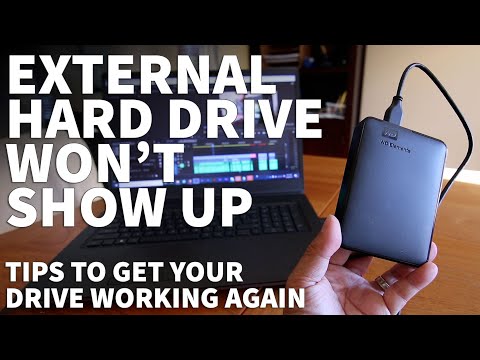
So, you’ve plugged in your trusty external hard drive, expecting to access your precious files, only to be met with… nothing. Frustrating, isn’t it? The computer doesn’t acknowledge its existence; it’s like the drive has vanished into the digital ether. There are many potential reasons why your computer isn’t detecting your external hard drive. It could be anything from a simple loose connection to a more serious internal failure. Let’s dive into the most common culprits and how to troubleshoot them effectively.
The core reasons fall into a few categories: power issues, connectivity problems, driver conflicts, file system corruption, or even physical damage. Understanding each of these areas is key to diagnosing the issue.
Troubleshooting the Invisible Drive: A Step-by-Step Approach
Here’s a structured approach to get your external hard drive back in action:
1. The Obvious (But Often Overlooked) Checks
- The Cable: Start with the basics. Is the USB cable properly connected to both the drive and your computer? Try a different USB cable. Cables can degrade over time and cause intermittent connection problems.
- The Port: Don’t assume all USB ports are created equal. Try plugging the drive into different USB ports. Use a USB 3.0 port if available, as they provide more power and faster data transfer speeds. Front panel USB ports can sometimes be underpowered, so try one on the back of your computer directly connected to the motherboard.
- Power: Is the drive receiving power? Check for indicator lights on the external hard drive. If it’s a larger drive, it might have its own power adapter. Make sure that’s plugged in and working correctly. Try a different power outlet.
2. Diving into Device Manager
Device Manager is your window into how your computer sees its hardware.
- Accessing Device Manager: In Windows, search for “Device Manager” in the Start menu.
- Look for Errors: Expand the “Disk drives” and “Universal Serial Bus controllers” sections. Look for any devices with a yellow exclamation mark or a red “X”. These indicate a problem.
- Update Drivers: Right-click on the problematic device and select “Update driver.” Choose “Search automatically for drivers.” Let Windows search for and install the latest drivers.
- Uninstall and Reinstall: If updating doesn’t work, try uninstalling the device and then restarting your computer. Windows will usually reinstall the drivers automatically.
3. Disk Management: The Unsung Hero
Disk Management is where you manage your hard drives, partitions, and volumes.
- Accessing Disk Management: Search for “Disk Management” in the Start menu.
- Is the Drive Listed? Look for your external hard drive in the list of disks. If it’s listed but doesn’t have a drive letter assigned, it won’t show up in File Explorer.
- Assign a Drive Letter: Right-click on the unallocated space or the volume without a drive letter and select “Change Drive Letter and Paths.” Click “Add” and assign an available drive letter.
- Initialize the Disk: If the disk is listed as “Not Initialized,” right-click on it and select “Initialize Disk.” Choose the appropriate partition style (usually GPT for drives larger than 2TB, MBR for smaller drives). Warning: Initializing will erase all data on the drive, so only do this if you’re sure you have a backup or the drive is brand new.
4. Addressing Driver Issues
- Outdated or Corrupt Drivers: As mentioned earlier, outdated or corrupt drivers are a common cause. Use Device Manager to update or reinstall the drivers.
- Manufacturer’s Website: Sometimes, Windows’ generic drivers aren’t enough. Visit the manufacturer’s website (e.g., Western Digital, Seagate, Toshiba) and download the latest drivers specifically for your external hard drive model.
- Driver Rollback: If the problem started after a recent driver update, try rolling back to a previous version. In Device Manager, right-click on the device, select “Properties,” go to the “Driver” tab, and click “Roll Back Driver.”
5. Power Management Settings
Windows has power management settings that can sometimes interfere with external hard drives.
- USB Selective Suspend: This feature can turn off power to USB devices to save energy. To disable it, go to “Control Panel” > “Hardware and Sound” > “Power Options.” Click “Change plan settings” for your current power plan, then “Change advanced power settings.” Expand “USB settings” and set “USB selective suspend setting” to “Disabled.”
6. Addressing File System Corruption
- Chkdsk Utility: The Chkdsk utility can scan your hard drive for file system errors and attempt to fix them.
- Running Chkdsk: Open Command Prompt as an administrator (search for “cmd” in the Start menu, right-click, and select “Run as administrator”). Type
chkdsk X: /f(replace “X” with the drive letter of your external hard drive) and press Enter. The/fswitch tells Chkdsk to fix any errors it finds. Note: This can take a long time, especially for large drives.
7. Compatibility Considerations
- Operating System Compatibility: Make sure your external hard drive is compatible with your operating system. Some older drives might not work well with newer versions of Windows.
- File System Compatibility: The drive might be formatted with a file system that your computer doesn’t natively support (e.g., APFS, often used by macOS).
8. When to Suspect Hardware Failure
If you’ve tried all the software fixes and the drive still isn’t recognized, it’s possible that the external hard drive has failed. Common signs of a failing drive include:
- Unusual Noises: Clicking, grinding, or whirring sounds.
- Inconsistent Performance: The drive works sometimes, but not others.
- Overheating: The drive gets excessively hot when plugged in.
- Physical Damage: Obvious signs of damage, such as a cracked case or bent connector.
If you suspect hardware failure, consider professional data recovery services, but understand that this can be expensive.
Frequently Asked Questions (FAQs)
Here are some frequently asked questions related to external hard drive recognition issues:
-
Why is my external hard drive not showing up in File Explorer?
- This usually indicates that the drive hasn’t been assigned a drive letter, isn’t initialized, or the file system is corrupted. Check Disk Management.
-
Can a faulty USB cable cause my external hard drive not to be detected?
- Absolutely. A damaged or worn-out USB cable can prevent the drive from receiving enough power or transmitting data correctly. Always try a different cable first.
-
Is it safe to initialize my external hard drive if I have important data on it?
- No! Initializing a disk will erase all data on it. Only initialize if you’re certain you have a backup or the drive is brand new.
-
How do I know if my external hard drive is receiving enough power?
- Check for indicator lights on the drive. If the drive is a larger desktop model, ensure the external power adapter is properly connected and functioning. Try a different power outlet.
-
What does it mean when my external hard drive is making clicking noises?
- Clicking noises often indicate a severe mechanical problem within the drive, such as a failing read/write head. This usually means the drive is failing and data recovery may be necessary.
-
How can I recover data from a crashed external hard drive?
- For physical failures, professional data recovery services are your best bet. For logical failures (e.g., file system corruption), data recovery software might be able to recover some or all of your files.
-
Can a virus prevent my external hard drive from being recognized?
- Yes, some malware can corrupt the file system or interfere with the drivers, preventing the drive from being recognized. Run a full system scan with a reputable antivirus program.
-
What is the difference between MBR and GPT when initializing a disk?
- MBR (Master Boot Record) is an older partition style limited to 2TB drives and four primary partitions. GPT (GUID Partition Table) is a newer standard that supports larger drives and more partitions. GPT is generally recommended for modern systems.
-
How long do external hard drives typically last?
- The typical lifespan of an external HDD (Hard Disk Drive) is about three to five years. SSDs (Solid State Drives) generally last longer, often ten years or more.
-
Can a power surge damage my external hard drive?
- Yes, power surges can damage the delicate electronics inside the drive. Use a surge protector to protect your devices.
-
Is it okay to leave my external hard drive plugged in all the time?
- While convenient, leaving it plugged in constantly can shorten its lifespan due to wear and tear. It’s best to unplug it when not in use.
-
My external hard drive works on one computer but not another. Why?
- This could be due to driver incompatibilities, file system differences, or power issues. Make sure the drive is formatted with a file system that both computers support (e.g., exFAT or NTFS). Also, ensure the computer that doesn’t recognize the drive has the necessary drivers installed.
-
What are the signs of file system corruption on an external hard drive?
- Common signs include: slow performance, error messages when accessing files, files disappearing or becoming corrupted, and the Chkdsk utility finding errors.
-
Will formatting my external hard drive fix the problem?
- Formatting will erase all data on the drive but can often fix file system errors. Make sure you have a backup before formatting.
-
Where can I learn more about computer hardware and troubleshooting?
- Many excellent resources are available online, including manufacturer’s websites, tech forums, and educational websites like the Games Learning Society (GamesLearningSociety.org), which explores technology and learning in innovative ways.
Conclusion: Don’t Give Up Hope!
Troubleshooting an unrecognized external hard drive can be a process of elimination, but with patience and the right steps, you can often get your drive back up and running. Remember to back up your data regularly to avoid data loss in case of hardware failure. And don’t be afraid to seek professional help if you’re not comfortable with the technical aspects of troubleshooting. Good luck!