Why Won’t My Minecraft Let Me Play Online? Unraveling Multiplayer Mysteries
Fast answer first. Then use the tabs or video for more detail.
- Watch the video explanation below for a faster overview.
- Game mechanics may change with updates or patches.
- Use this block to get the short answer without scrolling the whole page.
- Read the FAQ section if the article has one.
- Use the table of contents to jump straight to the detailed section you need.
- Watch the video first, then skim the article for specifics.
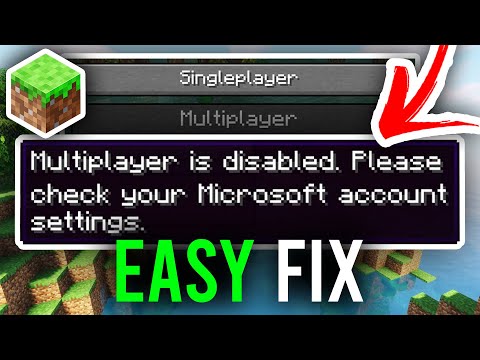
So, you’re itching to team up with your buddies, explore vast worlds, and build epic creations together in Minecraft, but you’re hitting a wall. The frustration is real! There are numerous potential reasons why you can’t connect to Minecraft multiplayer, and they often boil down to a complex interplay of network settings, account configurations, game versions, and platform compatibility. The root cause could be as simple as a disabled multiplayer setting, or as complex as a mismatch in Minecraft versions between you and your friends. Understanding these potential pitfalls is the first step to getting back in the game. Let’s explore some troubleshooting steps to get you back in the blocky action ASAP.
Diving Deep: Common Culprits Behind Minecraft’s Multiplayer Woes
The reasons behind Minecraft multiplayer issues are surprisingly diverse. Here’s a breakdown of the most frequent offenders:
-
Account Permissions and Parental Controls: Perhaps the most common culprit, particularly for younger players, is restricted access on your Microsoft account. Parental controls might be preventing you from joining multiplayer games, clubs, or accessing realms. This is often in place for safety reasons. Make sure your account (or your child’s account) is set up to allow online multiplayer.
-
Multiplayer Settings within Minecraft: Minecraft has its own set of in-game settings that need to be enabled. You need to manually toggle the “Join multiplayer games” setting. Failure to do so will prevent you from connecting with others, regardless of your account permissions.
-
Network Connection Problems: A stable internet connection is vital. If your connection is weak, intermittent, or experiencing packet loss, you’ll struggle to connect. Try restarting your router, checking your Wi-Fi signal strength, or switching to a wired connection (or vice versa) to troubleshoot. Ensure that your firewall is not blocking Minecraft’s connection to the internet.
-
Game Version Mismatches: This is a classic issue. If you and your friends are running different versions of Minecraft (Bedrock Edition vs. Java Edition, or different updates within the same edition), you won’t be able to connect. Make sure everyone is on the same page!
-
Platform Compatibility: This is a big one! While Minecraft Bedrock Edition supports cross-platform play (Xbox, PlayStation, Nintendo Switch, PC, and mobile), the original Minecraft: Java Edition doesn’t directly. There is a lot to consider when thinking about crossplay capabilities. Also, keep in mind that even within Bedrock Edition, older console versions (like the PS4 Edition) might have limited cross-compatibility due to platform policies.
-
Subscription Requirements: To play online on consoles like Xbox or PlayStation, you need an active subscription to their respective online services (Xbox Game Pass Core or PlayStation Plus). Without these subscriptions, multiplayer functionality is locked.
-
Outdated Game Launcher or Corrupted Files: Occasionally, the Minecraft Launcher itself can be the source of the problem. Uninstalling and reinstalling the launcher can resolve issues caused by corrupted files or outdated versions. Resetting the Microsoft Store can also help.
-
Firewall and Antivirus Interference: Security software can sometimes mistakenly block Minecraft from accessing the internet. Temporarily disable your firewall or antivirus (at your own risk) to see if that’s the issue. If it is, add Minecraft as an exception to your security software’s list of trusted programs.
-
Server Issues: The problem might not be on your end. The Minecraft server you’re trying to connect to could be experiencing downtime, maintenance, or be at full capacity. Check the server’s status online to rule this out.
-
Incorrect Server Address: A simple typo in the server address can prevent you from connecting. Double-check the address and port number to ensure accuracy.
-
Xbox Live Gold Requirement: Despite recent updates, some features of Minecraft on Xbox may still require Xbox Live Gold. This can be a frustrating point of confusion for many players.
-
Console Specific Issues: Specific errors such as 0x87DD0017 or 0x87dd000f often indicate problems with your Xbox Live connection or service outages. Similarly, issues connecting to Wi-Fi on your Xbox can also prevent you from accessing Minecraft online.
-
Age Restrictions: If your Microsoft Account is configured with an incorrect or restricted age, this can prevent you from accessing certain multiplayer features. Make sure your account reflects your correct age.
-
Bedrock vs Java: Minecraft comes in two different versions, Java and Bedrock, Java can only play with Java and Bedrock can only play with Bedrock. These are not cross compatible.
Quick Fixes to Try Immediately
Before diving into more complex troubleshooting, try these quick fixes:
- Restart your device.
- Restart your router.
- Close and reopen Minecraft.
- Log out and log back into your Microsoft account within Minecraft.
- Check for game updates.
FAQ: Tackling Common Minecraft Multiplayer Headaches
Here are some frequently asked questions to further clarify common issues and solutions:
-
How do I enable multiplayer in Minecraft if parental controls are blocking it?
Go to your Microsoft account settings online. Navigate to the family settings and find your child’s account. Under “Xbox Series X|S, Xbox One, and Windows 10 devices Online Safety,” ensure “You can create and join clubs” and “You can join multiplayer games” are set to “Allow.”
-
My Minecraft says “You cannot play online multiplayer because of how your Microsoft account is setup.” What does this mean?
This is a direct indication that parental controls or account restrictions are in place. Review your Microsoft account settings as described above. You might need to verify your age or adjust permissions.
-
Why can’t I join my friend’s Minecraft world on PS4?
There are several issues at play here. If your friend is playing on the older “Minecraft: PlayStation 4 Edition,” cross-play with other platforms is limited. If they are on Minecraft Bedrock Edition on the PS4, and you are on a different platform’s Bedrock Edition, be sure you are both logged into your Microsoft Accounts. Also ensure that you have both added each other as friends on Minecraft.
-
Do I need Xbox Live Gold to play Minecraft online?
Yes, generally speaking, you need Xbox Game Pass Core (formerly Xbox Live Gold) to play multiplayer on Minecraft on an Xbox console. While some free-to-play games no longer require a subscription, Minecraft multiplayer still falls under the subscription requirement, except when playing on a private local server.
-
How do I fix error code 0x87DD0017 on Xbox when trying to play Minecraft?
Error code 0x87DD0017 typically points to network connectivity problems with Xbox Live. Troubleshoot your internet connection, restart your router and console, and check the Xbox Live status page for any outages.
-
Why is my Minecraft PE (Pocket Edition) multiplayer not working?
Ensure both players are using the same version of Minecraft PE, have connected their Microsoft accounts to the game, and have added each other as friends. Check for any pending game updates on your devices.
-
What age do you have to be to play Minecraft multiplayer?
There isn’t a strict age limit for playing Minecraft in general, but Microsoft accounts for children under 13 require parental consent to access certain features, including online multiplayer.
-
How do I change my age on my Microsoft account?
Log into your Microsoft account online. Go to “Your info” and select “Edit date of birth.” You may be asked to verify your identity. Note that changing the age might require parental verification for younger accounts.
-
Does my child need a Microsoft account for Minecraft?
Yes, a Microsoft account is essential for playing Minecraft online with friends, accessing Realms, and using cross-platform features. It allows you to manage their privacy settings and ensure a safe online experience.
-
How can I play Minecraft online without installing anything?
You can play a very basic, classic version of Minecraft for free in your web browser at classic.minecraft.net. However, this version is extremely limited and doesn’t offer the full Minecraft experience.
-
What is “online mode” in Minecraft server settings?
“Online mode” verifies players’ authenticity through Mojang’s servers before they connect to your server. Enabling it ensures that players are using legitimate accounts and can access their profile skins.
-
Why won’t my Xbox connect to the Wi-Fi, but everything else will?
This could be a variety of issues including router placement, interference from other devices, or the Wi-Fi network’s frequency. If you’re using a 5 GHz Wi-Fi network, try switching to 2.4 GHz.
-
What is the oldest version of Minecraft you can play multiplayer?
Development version 0.0.15a (Multiplayer Test 1) is the earliest version of Java Edition that introduced the original multiplayer capability.
-
Is Minecraft appropriate for a 6-year-old?
While Minecraft is generally considered safe for kids, it’s recommended for ages 8 and up due to its complexity and potential for mild violence. For younger children, consider Minecraft alternatives designed for their age group.
-
Why won’t my Minecraft realms work?
Minecraft Realms require a stable internet connection. If the Realms server is down for maintenance you cannot connect. Make sure that the Realms subscription is active and paid for.
Getting Back in the Game: A Step-by-Step Troubleshooting Guide
If you’ve tried the quick fixes and reviewed the FAQs and you are still having problems, here’s a more structured approach to troubleshooting:
-
Account Verification: Double-check your Microsoft account settings, paying close attention to parental controls, age restrictions, and privacy permissions.
-
In-Game Settings: Ensure the “Join multiplayer games” setting is enabled in your Minecraft settings.
-
Network Diagnostics: Test your internet connection speed and stability. Restart your modem and router. Try connecting with a wired connection instead of Wi-Fi, or vice versa.
-
Version Consistency: Verify that all players are using the same version of Minecraft, and if using a server, the appropriate Minecraft version.
-
Platform Compatibility: Confirm whether cross-platform play is supported for the specific Minecraft versions and platforms you’re using.
-
Subscription Status: Check your Xbox Game Pass Core or PlayStation Plus subscription status, if applicable.
-
Launcher and Game Reinstallation: Uninstall and reinstall both the Minecraft Launcher and the game itself.
-
Firewall and Antivirus Configuration: Temporarily disable your firewall and antivirus to see if they’re blocking Minecraft. If so, add Minecraft as an exception.
-
Server Status: Check the status of the Minecraft server you’re trying to connect to.
-
Contact Support: If all else fails, reach out to Minecraft support or your console’s support team for further assistance.
Beyond the Game: The Educational Power of Minecraft
While troubleshooting connection issues can be frustrating, remember that Minecraft is more than just a game. It’s a powerful tool for learning and creativity. Organizations like the Games Learning Society at GamesLearningSociety.org are exploring how games like Minecraft can be used to teach valuable skills in subjects like math, science, and engineering. Minecraft is also a great tool to foster creativity!
Final Thoughts: Persistence Pays Off
Don’t give up! Troubleshooting Minecraft multiplayer issues can be a process of elimination. By systematically working through these steps, you’ll eventually identify the root cause and get back to building, exploring, and collaborating with your friends in the blocky world of Minecraft. Happy gaming!