Can You Copy Videos From USB to PS4? The Definitive Guide
Fast answer first. Then use the tabs or video for more detail.
- Watch the video explanation below for a faster overview.
- Game mechanics may change with updates or patches.
- Use this block to get the short answer without scrolling the whole page.
- Read the FAQ section if the article has one.
- Use the table of contents to jump straight to the detailed section you need.
- Watch the video first, then skim the article for specifics.
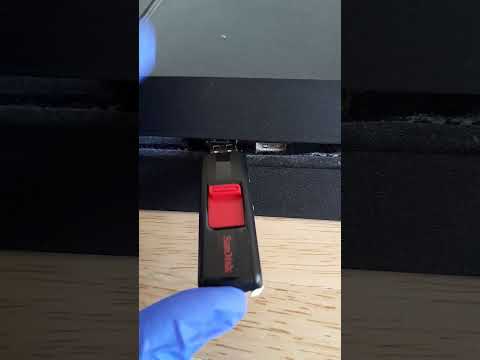
Yes, you can play videos from a USB drive on your PS4. The PS4 supports playing video files from USB storage devices, but there are some important requirements regarding file formats, folder structure, and the USB drive itself. Getting these details right ensures a smooth playback experience. Let’s dive into the specifics of how to make this happen and address common questions.
How to Play Videos from USB on Your PS4
1. Formatting Your USB Drive
Before anything else, you need to format your USB drive correctly. The PS4 only recognizes FAT32 and exFAT file systems.
- exFAT is generally preferred because it supports larger file sizes (crucial for high-definition videos). FAT32 has a file size limit of 4GB, which can be restrictive.
- To format, connect the USB drive to your computer. Right-click on the drive in File Explorer (Windows) or Finder (macOS) and select “Format.” Choose exFAT as the file system.
Important: Formatting will erase all data on the USB drive, so back up any important files beforehand!
2. Creating the Correct Folder Structure
This is a crucial step that many users overlook. The PS4 requires your video files to be placed inside a folder on the root directory of the USB drive. If the videos are not in a folder, the PS4 won’t recognize them.
- Create a new folder on the root of your USB drive. You can name it anything you like (e.g., “Videos,” “Movies,” “PS4Media”).
- Copy your video files into this folder.
3. Supported Video File Formats
The PS4 supports a range of video file formats, but compatibility isn’t guaranteed for every codec or container. Here are some of the most commonly supported formats:
- MKV
- AVI
- MP4
- MPEG
- WMV
If a video isn’t playing, it might be due to an unsupported codec. In this case, you’ll need to convert the video to a supported format using a video converter software on your computer.
4. Connecting the USB Drive to Your PS4
Once your USB drive is formatted, the folder structure is correct, and the video files are in a compatible format, you’re ready to connect it to your PS4.
- Power on your PS4.
- Insert the USB drive into one of the USB ports on the front of the console.
5. Accessing Your Videos on the PS4
Now it’s time to access your videos through the PS4’s Media Player.
- From the PS4’s main menu, navigate to the Content Area (the row of icons at the bottom of the screen).
- Look for the Media Player icon. If you don’t see it, you may need to download it from the PlayStation Store (it’s free).
- Open the Media Player.
- Select USB Storage Device.
- You should see the folder you created earlier. Open it, and you’ll find your video files.
- Select the video you want to play and enjoy!
Troubleshooting Common Issues
- PS4 doesn’t recognize the USB drive: Double-check the file system (exFAT or FAT32). Ensure the USB drive is properly inserted. Try a different USB port.
- Video file isn’t showing up: Verify the video file is inside a folder. Make sure the file format is supported.
- Video plays but there’s no sound: The audio codec might not be supported. Convert the video to a more compatible format.
- Video is choppy or laggy: The video might be too high resolution for the PS4 to handle smoothly, or the USB drive might be too slow. Try a lower-resolution video or a faster USB drive (USB 3.0 is recommended).
Why Use USB for Videos on PS4?
While the PS4 offers various streaming services and options, using a USB drive for video playback has some advantages:
- Offline Viewing: Perfect for watching videos when you don’t have an internet connection.
- No Streaming Bandwidth Required: Avoid buffering or quality drops caused by internet congestion.
- Personal Media Collection: Easily access your own collection of home videos, movies, or shows.
Frequently Asked Questions (FAQs)
1. Can the PS4 read NTFS formatted USB drives?
No, the PS4 cannot read NTFS formatted USB drives. It only supports FAT32 and exFAT.
2. What’s the maximum USB drive size the PS4 can handle?
The PS4 can handle USB drives up to 8TB in size, giving you ample space for storing a large video library.
3. Do I need PlayStation Plus to play videos from USB?
No, a PlayStation Plus subscription is not required to play videos from a USB drive. This is a standard feature available to all PS4 users.
4. Can I play 4K videos from USB on my PS4?
Yes, the PS4 Pro and PS4 can play 4K videos from a USB drive, provided the video file is in a supported format and the resolution is compatible. However, the standard PS4 might struggle with very high bitrate 4K files.
5. Can I use a USB hub to connect multiple USB drives to my PS4?
While it might work, using a USB hub is not recommended. It can sometimes cause connectivity issues or reduce the transfer speed, potentially affecting video playback. It’s better to connect the USB drive directly to the PS4.
6. What video converter software do you recommend for PS4 compatibility?
There are many video converter programs available. HandBrake is a popular, free, and open-source option. Wondershare UniConverter and Movavi Video Converter are also good choices if you need more advanced features.
7. How do I fast forward or rewind videos on the PS4 Media Player?
Use the left and right directional buttons on the DualShock 4 controller to fast forward or rewind. The L2 and R2 buttons can be used for skipping forward or backward by larger increments.
8. Can I create playlists of videos on my USB drive for the PS4 Media Player?
Unfortunately, the PS4 Media Player doesn’t support creating playlists directly from the USB drive. You’ll have to play videos individually.
9. Is there a way to stream videos from my computer to my PS4 without using a USB drive?
Yes, you can use Plex Media Server to stream videos from your computer to your PS4. Plex requires installing server software on your computer and a Plex app on your PS4.
10. Can I watch videos while playing a game on my PS4?
No, the PS4 doesn’t support picture-in-picture or simultaneous video playback and gaming. You’ll need to pause your game to watch a video.
11. Can I use an external hard drive as extended storage and play videos from it on my PS4?
No, if a USB drive is formatted as extended storage for games and applications, it cannot be used to play media files at the same time. You’ll need a separate USB drive for video playback.
12. Why is my PS4 asking to enable disc playback over the internet when I’m trying to play a video from USB?
This message is related to playing Blu-ray discs or DVDs, not videos from USB. Your PS4 requires a one-time internet connection to enable disc playback functionality. It’s unrelated to USB video playback.
13. What does ‘AVCHD supported’ mean in the context of PS4 video playback?
AVCHD (Advanced Video Coding High Definition) is a file-based format for the digital recording and playback of high-definition video. If your video is in AVCHD format, the PS4 should be able to play it.
14. Can I transfer video files directly from my phone to the PS4 via USB?
Generally, no. Android devices typically connect as MTP (Media Transfer Protocol) devices, which the PS4 doesn’t directly support for video playback. You need to transfer the videos to a USB drive first.
15. Are there any educational resources for kids to create and share videos safely?
Yes, understanding media creation and safe sharing is crucial. The Games Learning Society organization provides educational resources and initiatives that explore the intersection of gaming, learning, and digital media literacy. Check out their website for more information: https://www.gameslearningsociety.org/. Consider also resources from Common Sense Media for guidance on age-appropriate content and online safety.