How to Access Shared Games on Your Nintendo Switch: A Comprehensive Guide
Fast answer first. Then use the tabs or video for more detail.
- Watch the video explanation below for a faster overview.
- Game mechanics may change with updates or patches.
- Use this block to get the short answer without scrolling the whole page.
- Read the FAQ section if the article has one.
- Use the table of contents to jump straight to the detailed section you need.
- Watch the video first, then skim the article for specifics.
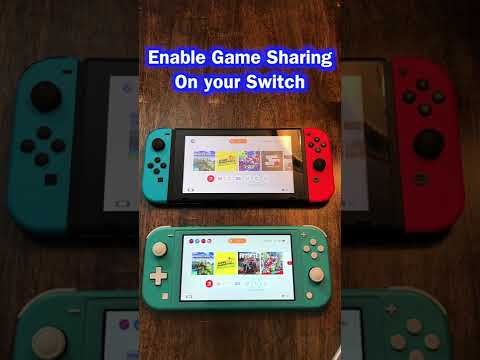
Accessing shared games on your Nintendo Switch involves leveraging Nintendo’s system of primary and non-primary consoles linked to a Nintendo Account. In essence, you need to ensure the console you want to play on recognizes the account that owns the game and follows Nintendo’s rules about primary console designation. This typically involves linking your Nintendo Account to the non-primary Nintendo Switch systems you wish to play your digital games on and re-downloading the games or content you want to access. Let’s dive deeper.
Understanding the Nintendo Switch Sharing Ecosystem
The Nintendo Switch’s game-sharing capabilities are somewhat unique and require a bit of understanding of how Nintendo Accounts, primary consoles, and non-primary consoles interact. The core concept revolves around the distinction between a primary console and other, non-primary consoles linked to the same Nintendo Account.
The Primary Console: Your Home Base
A primary console acts as your home base for digital game ownership. It’s the console where anyone who uses it can play your digitally purchased games, regardless of their own Nintendo Account. This is ideal for families who share a single Switch. Essentially, anyone logged into any profile on the console can play all of the games downloaded and purchased on the primary console.
Non-Primary Consoles: Taking Your Games on the Go
Non-primary consoles are other Nintendo Switch systems linked to your Nintendo Account. On these systems, only you (the account holder who purchased the games) can play the digitally downloaded games. This is designed for individuals who might have multiple Switch consoles – perhaps a standard Switch at home and a Switch Lite for travel.
Steps to Access Shared Games on Non-Primary Consoles
Here’s a detailed breakdown of how to access your shared games on a non-primary Nintendo Switch:
-
Link Your Nintendo Account: First and foremost, ensure your Nintendo Account is linked to the non-primary Nintendo Switch console. If you haven’t already, go to System Settings > Users > Add User and follow the on-screen instructions to create or link an existing account.
-
Access the Nintendo eShop: Open the Nintendo eShop on the non-primary console using your linked Nintendo Account.
-
Navigate to Your Redownload List: In the eShop, click on your profile icon in the upper-right corner to access your account information. Then, scroll down and select the “Redownload” option. This will display a list of all the digital games you’ve purchased with that Nintendo Account.
-
Redownload the Desired Games: Find the games you want to play on the non-primary console and select the download icon (a cloud with an arrow pointing down). The games will begin downloading to your console.
-
Launch and Play: Once the download is complete, the game icon will appear on the HOME Menu of the Nintendo Switch. Select the game to launch and play.
Important Considerations for Simultaneous Play
One of the most crucial aspects to understand is how Nintendo handles simultaneous play across multiple consoles using the same account.
-
No Simultaneous Play with the Same Account: You cannot play the same digital game simultaneously on both your primary and non-primary consoles (or two non-primary consoles) while logged in with the same Nintendo Account. If you attempt to do so, the game on the first console will be suspended.
-
Different Accounts Required for Simultaneous Play: To play the same game simultaneously on two different Switch consoles, each console needs to be logged in with a different Nintendo Account. This means you’ll need to purchase the game twice, once for each account.
Switching Your Primary Console
You can change which console is designated as your primary console. Here’s how:
-
Deactivate the Current Primary Console: The easiest way is to go to the eShop on the console you wish to remove as the primary console. Go to your account settings. Scroll down, and you should see the option to de-register the console.
-
Link and Designate the New Console: On the Nintendo Switch you want to make the new primary console, sign in with your Nintendo Account. When you attempt to launch a digital game purchased with that account, the system will automatically prompt you to designate it as the primary console.
- Note: If you no longer have access to your old primary console, you can deregister it remotely from the Nintendo website, but you can only do this once per year.
Troubleshooting Common Issues
-
Game Not Appearing in Redownload List: Ensure you are logged into the correct Nintendo Account – the one that was used to purchase the game. Double-check the eShop region; the game might have been purchased in a different region.
-
Error Message When Launching Game: Verify that your non-primary console is connected to the internet. Non-primary consoles require an active internet connection to verify your game license.
-
Game Play Suspended: This usually occurs when you’re trying to play the same game simultaneously on multiple consoles using the same Nintendo Account. Close the game on one console and ensure each console is using a separate account for simultaneous play.
By understanding these steps and considerations, you can effectively share your digital games across your Nintendo Switch consoles and enjoy your gaming library wherever you go. The Games Learning Society offers invaluable resources for understanding game mechanics and design principles, enriching your overall gaming experience. You can visit their website at https://www.gameslearningsociety.org/ to learn more.
Frequently Asked Questions (FAQs)
1. Can I share my digital games with friends on their Switch?
Yes, but it involves a bit of a workaround. You need to log in to your friend’s Switch and designate it as your primary console. Then, they can download your games. However, you’ll only be able to play your own digital games on your Switch (your non-primary console) using your account, and you’ll need an internet connection to verify the game’s license each time you play. It’s generally not recommended due to the convenience limitations it presents.
2. What happens if I have multiple Nintendo Switch consoles?
You can link your Nintendo Account to all of them. One will be your primary console, and the others will be non-primary consoles. Remember the rules about simultaneous play and internet connectivity for non-primary consoles.
3. Is Nintendo Switch Online required to access shared games?
No, Nintendo Switch Online is not directly required to access shared games on your consoles. However, it’s needed for online multiplayer functionality and access to retro games.
4. Can multiple profiles on the same Switch access my downloaded games?
Yes, if the Switch is your primary console. Any profile on the primary console can play any game downloaded under your Nintendo Account.
5. Can I transfer save data between consoles when sharing games?
Unfortunately, not easily. Save data is typically stored on the console’s system memory and cannot be directly transferred via microSD card for most games. However, some games support cloud saves via Nintendo Switch Online, allowing you to sync your progress across consoles.
6. What if I lose my Nintendo Switch?
If you lose your primary console, you can deregister it remotely via the Nintendo website (once per year). This will allow you to designate another console as your new primary console.
7. Can I share physical game cartridges?
Yes, physical game cartridges can be shared without any account restrictions. Simply insert the cartridge into any Nintendo Switch console and play.
8. What are the limitations of using a non-primary console?
You need an active internet connection to play games on a non-primary console. You also can’t play the same game simultaneously on another console using the same Nintendo Account.
9. How do I know which console is my primary console?
The easiest way is to go to the eShop on a Nintendo Switch and check your account information. If you see an option to “Deregister Primary Console,” then that console is your primary console.
10. Can I use the same Nintendo Account on a Switch and a Nintendo Switch Lite?
Yes, you can use the same Nintendo Account on both a Switch and a Switch Lite. Just remember the primary/non-primary console rules.
11. What happens if I forget my Nintendo Account password?
You can recover your Nintendo Account password through the Nintendo website or app using your email address.
12. Are there any parental controls that affect game sharing?
Yes, parental controls can restrict which games can be played on a console, regardless of whether they are shared.
13. Can I share DLC (Downloadable Content) with shared games?
Yes, DLC is tied to your Nintendo Account and can be accessed on your primary and non-primary consoles, provided you download it on each console.
14. I’m still having trouble. Where can I get help?
You can contact Nintendo Support through their website for personalized assistance with any account or game-sharing issues.
15. Does game sharing affect my ability to earn My Nintendo rewards?
No, game sharing doesn’t directly affect your ability to earn My Nintendo rewards. You’ll still earn points for purchases made with your Nintendo Account, regardless of which console you’re using.