Where Do Minecraft Purchases Go? Unraveling Your Digital Acquisitions
Fast answer first. Then use the tabs or video for more detail.
- Watch the video explanation below for a faster overview.
- Game mechanics may change with updates or patches.
- Use this block to get the short answer without scrolling the whole page.
- Read the FAQ section if the article has one.
- Use the table of contents to jump straight to the detailed section you need.
- Watch the video first, then skim the article for specifics.
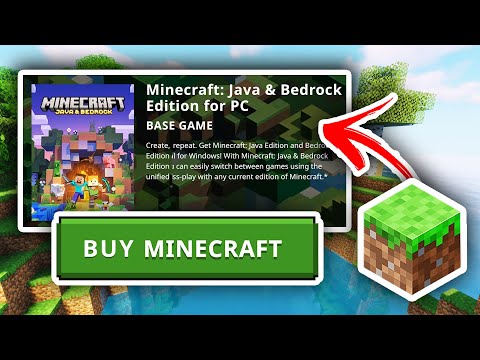
So, you’ve splurged on some shiny new skins, a texture pack that’s out of this world, or even the game itself, and you’re wondering, “Where exactly are my Minecraft purchases stored?” The simple answer is: Your Minecraft purchases are tied to the account you used to make them. Specifically, this is generally your Microsoft account or, for legacy Java Edition accounts that have not been migrated, your Mojang account. These purchases are not directly tied to your device but rather to your online profile, allowing access across multiple devices as long as you’re logged into the same account. However, the specifics vary depending on the platform and type of purchase.
Let’s delve deeper into the nuances and provide a comprehensive understanding of how Minecraft purchases are managed and accessed.
Understanding Account Association
The key concept to grasp is that Minecraft purchases are fundamentally linked to your user account. This account acts as a virtual vault, storing your entitlements and granting you access to your purchased content.
Microsoft Accounts and Minecraft
For Minecraft: Bedrock Edition (available on Windows 10/11, Xbox, PlayStation, Nintendo Switch, and mobile devices), all purchases are inextricably linked to your Microsoft account. When you buy Minecoins, skins, texture packs, or even the game itself on one of these platforms, that purchase is associated with your Microsoft account. You can access these items on any device where you’re logged in with the same Microsoft account.
Mojang Accounts and Legacy Java Edition
For the original Minecraft: Java Edition, things are slightly different, especially if you have an older account. Historically, Minecraft: Java Edition used Mojang accounts. However, Mojang accounts have now mostly been migrated to Microsoft accounts. If you have not yet migrated a Mojang account to a Microsoft Account, do so immediately. Once the account has been migrated, purchases can then be accessed across devices where you are logged in.
Device-Specific Considerations
While your account is the primary store of your purchases, there are some device-specific considerations. For example, worlds created in Minecraft: Java Edition are stored locally on your computer’s hard drive. Therefore, moving your worlds requires manually transferring the save files.
Troubleshooting Missing Purchases
Sometimes, despite the account association, your Minecraft purchases might not immediately appear. Here’s how to troubleshoot common issues:
-
Account Verification: The most frequent cause is being logged into the wrong account. Double-check the email address and associated Microsoft account to ensure it’s the one you used for the purchase.
-
Game Restart: A simple restart of the game can often refresh your entitlements and resolve the issue.
-
Device Restart: If restarting the game doesn’t work, try restarting your device. This can clear temporary glitches and force the game to re-authenticate your account.
-
Order History: Verify the purchase in your account’s order history. On a Microsoft account, go to “Payment & billing” > “Order history” to confirm the transaction.
-
“Restore Purchases” Function: In the Minecraft Marketplace, look for a “Restore Purchases” option. This prompts the game to re-verify your entitlements.
-
Check for Game Updates: An outdated game version can sometimes cause compatibility issues. Ensure your Minecraft version is up to date.
-
Xbox Live Connection: For consoles, ensure you’re connected to Xbox Live (or PlayStation Network/Nintendo Online) and that your Microsoft account is properly linked.
FAQs: Demystifying Minecraft Purchases
Here are some frequently asked questions to further clarify how Minecraft purchases work:
1. Do I have to repurchase Minecraft on different platforms?
Yes, in most cases. You need to purchase Minecraft separately for each platform you wish to play on (PC, Xbox, PlayStation, Switch, mobile). While your purchased content (skins, texture packs) may transfer, the base game license does not.
2. How do I access my purchases on a new device?
Sign in to your Microsoft account (or Mojang account if you’re using Java Edition before migration) on the new device. Your purchased content should automatically become available.
3. What happens to my purchases if I switch from Xbox to PlayStation?
Your purchased content, such as skins and texture packs bought with Minecoins, should transfer between Bedrock Edition platforms, assuming you’re using the same Microsoft account. However, the base game license remains platform-specific.
4. Why are my skins not showing up in multiplayer?
Ensure you’re using the correct game version. Additionally, in the game settings, check the “Only Allow Trusted Skins” option. If enabled, disable it to see other players’ skins. Also, ensure your friends have this setting configured correctly on their end.
5. Where did my Minecoins go?
Minecoins are stored in your virtual wallet, linked to your Microsoft account. They can be used across devices when you’re signed into Xbox Live (or your Microsoft account) within the Bedrock Edition.
6. Do Minecraft purchases expire?
No, your purchased content does not expire. Once you buy a skin or texture pack, it’s yours to keep as long as you have access to your Microsoft account and the game’s platform.
7. How do I transfer my Minecraft purchases to a different Microsoft account?
Unfortunately, transferring purchases between Microsoft accounts is generally not possible. Purchases are permanently tied to the account used to make them. Contacting Xbox Support might be a possible avenue in exceptional circumstances, but success is not guaranteed.
8. I migrated my Mojang account, but my purchases are missing. What do I do?
Double-check that you migrated to the correct Microsoft account. If you’re certain you migrated to the correct account and your purchases are still missing, contact Minecraft Support with your Mojang account and Microsoft account details.
9. Why am I being asked to buy Minecraft again?
This usually means you’re logged in to the wrong account, using a different edition of the game than you purchased, or the email associated with your account has changed. It’s also possible that your previous purchase was refunded.
10. How do I find my Minecraft receipt?
Check the email address associated with your Microsoft account for a confirmation email from Mojang Studios (or Microsoft). Look in your inbox (and spam/junk folder) for the transaction ID and order number.
11. Why are my Minecraft coins not showing up after purchase?
Restart the game and your device. Verify that the purchase is listed in your Microsoft account‘s order history. If it’s listed, but the coins still don’t appear, contact Xbox Support.
12. Can I use my Java Edition skins in Bedrock Edition?
No, Java Edition and Bedrock Edition use different skin formats. You’ll need to find or create skins specifically for Bedrock Edition.
13. Is it possible to get a refund on Minecraft purchases?
Refunds are generally subject to Microsoft’s refund policy. You can request a refund through your Microsoft account‘s order history, but approval isn’t guaranteed.
14. What happens to my Minecraft purchases if my Microsoft account is hacked?
If your Microsoft account is hacked, immediately contact Microsoft Support to regain control of your account. Once you’ve secured your account, your Minecraft purchases should be safe, as they’re tied to your account.
15. Where can I learn more about the educational uses of Minecraft?
The educational potential of games like Minecraft is explored by organizations such as the Games Learning Society and through research into game-based learning. Visit GamesLearningSociety.org for resources and insights into this exciting field.
Conclusion
Navigating the world of Minecraft purchases can seem daunting, but understanding the underlying account system simplifies the process. Remember that your Microsoft account is the key to accessing your content across devices. By following the troubleshooting steps and consulting the FAQs, you can ensure a smooth and enjoyable Minecraft experience. Whether you’re a seasoned builder, an avid explorer, or an educator leveraging the power of games, knowing where your digital assets reside is essential.